Showing posts with label asa. Show all posts

How to enable ASA for a page or page hierarchy

The PortalBuilder2 theme generates asa metadata in page by default, but you will have to enable collecting and sending the page level data source to URL.

You can enable ASA at a page level by adding a asa_aggregator page level property like this, value of the property will be equal to name of the JavaScript file that has the code to collect and send information
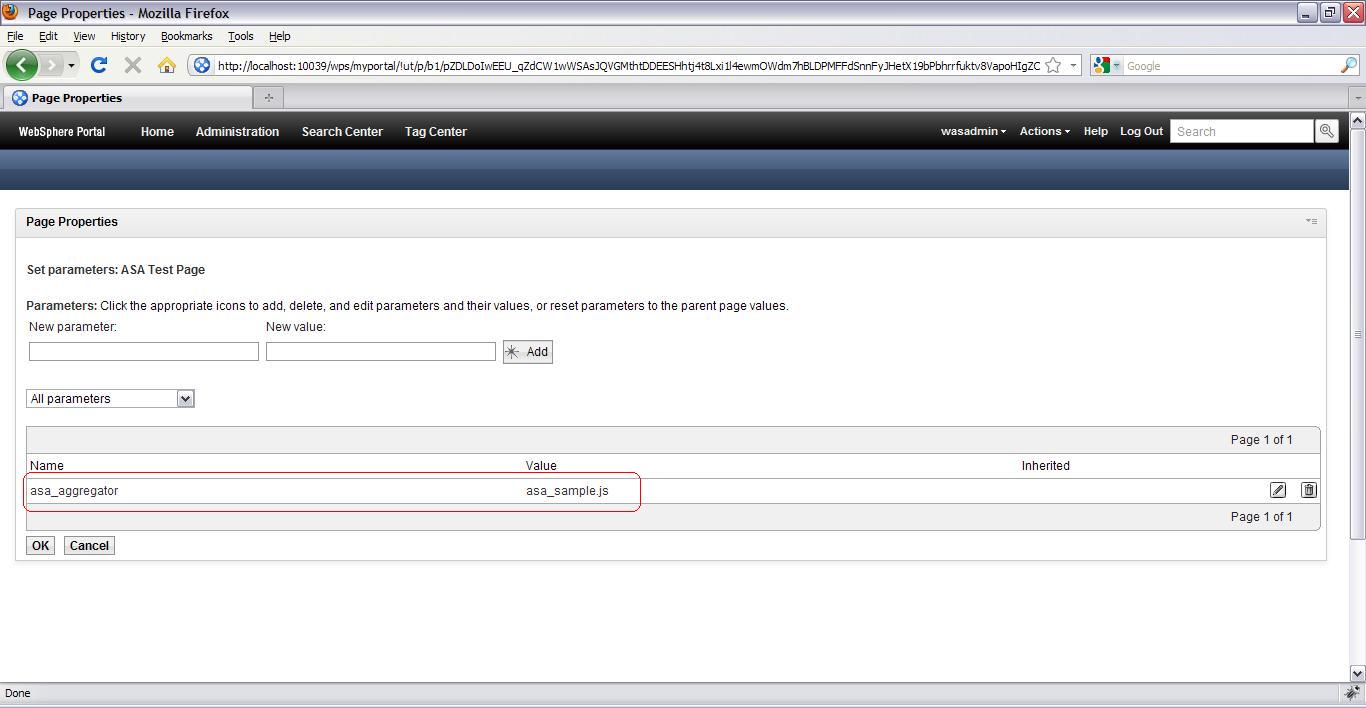


In my case i am using the asa_samples.js aggregator provided by WebSphere Portal.

Once the asa aggregation is enabled and if you did not change the URL where the data should get submitted then it will "ASA Tracking image" text at the end of the page like this


In my case i changed the value of trackingImg in the asa_sample.js like this

var trackingImg = "http://localhost:10039/trackingservlet/tracking.gif";


I am planning to create my own trackingServlet that will be deployed in the same portal server. After i made this change i can see that the portal is submitting data to the servlet like this


I dont have the trackingServlet ready yet so its getting HTTP 404 error.

It seems that the THeme structure is changed completely in the WPS 70 and we are supposed to use WebDav for making theme changes, but i am not able to use WebDav for connecting to portal, so i searched for where is asa_samples.js and it seems that the portal keeps copy of it in WebSphere\wp_profile\temp\wpnotes\WebSphere_Portal\JCRFileStore\filestore\fs-type1\themes\PageBuilder2\js folder like this. I changed that file directly and it worked

Web Analytics metadata

In WebSPhere Portal 7.0 the Page Builder theme generates asa related metadata for the page

I wanted to see what meta-data gets generated so i created a "Asa Test Page" page and i did add "About WebSphere Portal" portlet to this page and tried looking at what HTML gets generated

This is the HTML markup fragment that generates page level metadata


By default it generates

  • asa.page.title

  • asa.page.id

  • asa.page.breadcrumb


This information is generated by WebSphere\PortalServer\theme\wp.mashup.cc.theme\installedApps\wp.mashup.cc.theme.ear\PageBuilder2.war\themes\html\PageBuilder2\asa.sample.jsp


By default it generates following information

  • asa.portlet.title

  • asa.portlet.id

What is active site analytics (ASA) ?

WebSphere Portal Server provides active site analysis (ASA) feature that you can use to collect the portal usage data and send it to some external web site analysis tool or your own tool to capture information on how your portal is used.

Portal also provides Server side analytics that can log your usage data in the NCSA format on portal server, but what if your using a third part tool like say Google Web Analytics or Omniture Coremetrics , or Adobe Active Site Analytics, in those cases it makes sense to use ASA feature.

The way ASA feature works is when your portal page is getting generated the theme and skin will produce some metadata information in the HTML and then you will use JavaScript code to collect that information and submit it to analytics site. The default theme has support to generate the metadata information and portal provides a sample JavaScript that you can use to collect and send information. Portal also provides some code/detailed information on how to integrate it with third part tools like Coremetrics, WebTrends, you can find samples on the Portal Wiki