- First i stated my Android Emulator with my application running on it
- Once my application is launch on desktop i opened my Chrome browser and clicked on Tools -< Inspect Devices like this

-
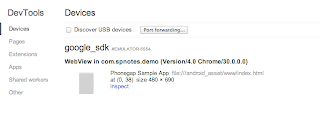
On the next tool it should display list of Devices available and here you should see name of the android emulator like this, click on inspect link
-
It opens a new window pointing to your PhoneGap page, you can use that screen for debugging, looking at console messages,... etc

Showing posts with label cordova. Show all posts
Showing posts with label cordova. Show all posts
Debugging Cordova/PhoneGap applications running on Android
Being able to debug your code is always a big help, I wanted to debug PhoneGap/Cordova application and i used the Google Chrome Developer tools that make it really easy to debug web application running on Android


Problems with Android LogCat
When i was working with Android application every now and then i was running into problem that logcat would not work. i.e. if i ran  For first few times i did restart my machine to get it working. But then i found this solution. In that you restart your adb by executing following 2 commands
 Make sure that you get daemon started successfully message, if not try stopping and starting adb again. Once your adb started, start emulator and then you should be able to execute
  Now if you run
adb logcat it would just seat there saying - waiting for devices - like this

adb kill-all
adb start-server

adb devices and it should show name of your emulator.

adb logcat command it should work
Subscribe to:
Posts (Atom)