- Install Ripple extension in Chrome
- Start the Google Chrome browser with its access to local file system by executing
chrome.exe -–allow-file-access-from-files - Then Right click on the Ripple symbol and say Manage Google Extensions, on the next screen check
Allow access to file URLscheck box
- Now open index.html from the phoneGap application using file URL and enable Ripple for it

- Now you can test the geolocation application like this. With Ripple advantage is you can directly open the HTML in browser and then set geolocation directly using Ripple

Showing posts with label geolocation. Show all posts
Showing posts with label geolocation. Show all posts
Using ripple mobile browser emulator for testing PhoneGap
One of the biggest pain point for testing PhoneGap application is deploying it on emulator and testing it, that process takes long time. So i started using the Ripple which is Google Chrome extension and it makes testing PhoneGap application really easy.


Using Geolocation API in Android Emulator
In the Getting address of the current location using GeoLocation API and Google MAP api entry i talked about how to use the GeoLocation API provided as part of HTML 5 to get the current address of the user. Now Phone Gap also provides support for geolocation which means it checks if the browser on the device has support for geolocation if yes it lets it work if not it will call the native API of the underlying browser to get the the location and return it to browser. I wanted to try that so i took the content of

geolocation.html and copied it in the index.html file that my phonegap application for android is using, you can download that app from here
I followed these steps to build Android PhoneGap application
- I followed the instructions in Getting Started with Android to build application that points to index.html inside the application, i tried it once to make sure that it works
- Then i copied the content of Geolocation.html in the index.html page
- Change the AndroidManifest.xml file to allow application to use the mock location
<?xml version="1.0" encoding="utf-8"?> <manifest xmlns:android="http://schemas.android.com/apk/res/android" package="com.webspherenotes.phonegap" android:versionCode="1" android:versionName="1.0" > <uses-sdk android:minSdkVersion="8" /> <uses-permission android:name="android.permission.CAMERA" /> <uses-permission android:name="android.permission.VIBRATE" /> <uses-permission android:name="android.permission.ACCESS_COARSE_LOCATION" /> <uses-permission android:name="android.permission.ACCESS_FINE_LOCATION" /> <uses-permission android:name="android.permission.ACCESS_LOCATION_EXTRA_COMMANDS" /> <uses-permission android:name="android.permission.ACCESS_MOCK_LOCATION" /> <uses-permission android:name="android.permission.READ_PHONE_STATE" /> <uses-permission android:name="android.permission.INTERNET" /> <uses-permission android:name="android.permission.RECEIVE_SMS" /> <uses-permission android:name="android.permission.RECORD_AUDIO" /> <uses-permission android:name="android.permission.MODIFY_AUDIO_SETTINGS" /> <uses-permission android:name="android.permission.READ_CONTACTS" /> <uses-permission android:name="android.permission.WRITE_CONTACTS" /> <uses-permission android:name="android.permission.WRITE_EXTERNAL_STORAGE" /> <uses-permission android:name="android.permission.ACCESS_NETWORK_STATE" /> <uses-permission android:name="android.permission.GET_ACCOUNTS" /> <uses-permission android:name="android.permission.BROADCAST_STICKY" /> <application android:icon="@drawable/ic_launcher" android:label="@string/app_name" > <activity android:name=".HelloPhoneGapActivity" android:label="@string/app_name" android:configChanges="orientation|keyboardHidden" > <intent-filter> <action android:name="android.intent.action.MAIN" /> <category android:name="android.intent.category.LAUNCHER" /> </intent-filter> </activity> </application> </manifest> - The android emulator does not know how to find out current location of the user, so we have to setup mock location i.e. hard code a location for the user. For that you have two options either use the DDMS perspective in your Eclipse and after your emulator is started select it and enter value of longitude and latitude and click on send like this.

-
Or open a Telnet session to the emulator by executing
telnet localhost 5554(you can get port number 5554 from the emulator window it would be in title bar) and then in the telnet window usegeo fix -121.9754144 37.5669038command to set the longitude and latitude like this


Getting address of the current location using GeoLocation API and Google MAP api
The HTML 5 has concept of Geo Location that lets you read current address of the user, So if your using a mobile device it will give you current address using GPS but if your using normal Laptop or Desktop it still gives you current address with less accuracy. In my case it gives address of AT&T office which is my internet provider. I wanted to figure out how GeoLocation API's work so i build this sample application that displays my current address. You can download the Geolocation.html file from here
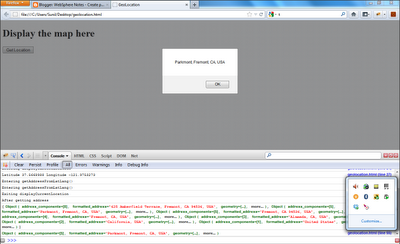
This is how my Geolocation.html page looks like in browser
 My Geolocation.html page has one

Get Location button when you click on that button it will show you address of the current location. Now the address is not always accurate. Also i tested this code in Firefox 12.0 and Internet Explorer 9, the Geolocation code does not work in Chrome if your accessing the file directly from file system i mean using file:// URL.
This is the source code for the Geolocation.html
<!DOCTYPE html>
<html>
  <head>
    <title>GeoLocation</title>
    <script src="http://maps.google.com/maps/api/js?sensor=true">
 </script>
    <script type="text/javascript" charset="utf-8">
   function getLocation(){
      console.log("Entering getLocation()");
      if(navigator.geolocation){
      navigator.geolocation.getCurrentPosition(
      displayCurrentLocation,
      displayError,
      {
        maximumAge: 3000,
        timeout: 5000,
        enableHighAccuracy: true
      });
    }else{
      console.log("Oops, no geolocation support");
    }
      console.log("Exiting getLocation()");
    };
    function displayCurrentLocation(position){
      console.log("Entering displayCurrentLocation");
      var latitude = position.coords.latitude;
    var longitude = position.coords.longitude;
    console.log("Latitude " + latitude +" Longitude " + longitude);
    getAddressFromLatLang(latitude,longitude);
      console.log("Exiting displayCurrentLocation");
    }
   function  displayError(error){
    console.log("Entering ConsultantLocator.displayError()");
    var errorType = {
      0: "Unknown error",
      1: "Permission denied by user",
      2: "Position is not available",
      3: "Request time out"
    };
    var errorMessage = errorType[error.code];
    if(error.code == 0  || error.code == 2){
      errorMessage = errorMessage + "  " + error.message;
    }
    alert("Error Message " + errorMessage);
    console.log("Exiting ConsultantLocator.displayError()");
  }
    function getAddressFromLatLang(lat,lng){
      console.log("Entering getAddressFromLatLang()");
      var geocoder = new google.maps.Geocoder();
        var latLng = new google.maps.LatLng(lat, lng);
        geocoder.geocode( { 'latLng': latLng}, function(results, status) {
        console.log("After getting address");
        console.log(results);
        if (status == google.maps.GeocoderStatus.OK) {
          if (results[1]) {
            console.log(results[1]);
            alert(results[1].formatted_address);
          }
        }else{
          alert("Geocode was not successful
    for the following reason: " + status);
        }
        });
      console.log("Entering getAddressFromLatLang()");
    }
    </script>
  </head>
  <body>
    <h1>Display the map here</h1>
    <input type="button" id="getLocation"
 onclick="getLocation()" value="Get Location"/>
    <div id="map"></div>
  </body>
</html>
getLocation() function which first checks if the browser supports GeoLocation API by checking navigator.geolocation object, if that object is not null that means browser supports GeoLocation and we ask browser for current location by calling navigator.geolocation.getCurrentPosition() with displayCurrentLocation() as a call back function if the current location lookup was successful.
The browser calls displayCurrentLocation() function with current location using position object, which has longitude and latitude as properties. The latitude and longitude would have values like Latitude 37.5668988 Longitude -121.9753273, so we have to use the Google MAP API to get street address from the longitude and latitude values, for that we call getAddressFromLatLang function.
Inside the getAddressFromLatLang() function i am creating object of google.maps.Geocoder and calling its geocode() method with latitude and longitude and it returns array of addresses for that location. Once i have the address i can print it using alert.
Subscribe to:
Posts (Atom)