Showing posts with label verifyinstallation. Show all posts

Verify Instllation - Hitcount servlet

The HitCount servlet is another servlet that is part of the DefaultApplication and since the default application is installed on every application server, you can use it to either verify the install or at the later point of time to verify that the server is up and running.

Use the HitCount demonstration application to demonstrate how to increment a counter using a variety of methods, including:

  • A servlet instance variable

  • An HTTP session

  • An enterprise bean


You can instruct the servlet to execute any of these methods within a transaction that you can commit or roll back. If the transaction is committed, the counter is incremented. If the transaction is rolled back, the counter is not incremented.

Verify Instllation - Snoop servlet

WebSphere Application Server provides a default configuration that administrators can use to easily verify that the Application installed is installed properly and running. When the product is installed, it includes an application server called server1 and enterprise aplication called Default Application. The Default application has snoop servlet, that retrieves information about a servlet request. The servlet returns following information


  • Servlet initialization parameters

  • Servlet context initialization parameters

  • URL invocation request parameters

  • Preferred client locale

  • Context path

  • User principal

  • Request headers and their values

  • Request parameter names and their values

  • HTTPS protocol information

  • Servlet request attributes and their values

  • HTTP session information

  • Session attributes and their values


The Snoop servlet includes security configuration so that when WebSphere Security is enabled, clients must supply a user ID and password to initiate the servlet.

You can access the snoop servlet at http://localhost:9080/snoop. This screen shot is from the response that i get on my machine

Checksum (installver) command

After installing the product or after installing maintenance packages, you can use the installation verification utility (IVU) to compute checksums of the installed file set to verify the checksum against the checksum in the product bill of materials.

The IVU tool is installed during the installation of the following product components:

  • WebSphere Application Server Network Deployment

  • Application Client

  • IBM HTTP Server

  • Web server plug-ins

  • Update Installer for WebSphere Application Server


After installation, verify actual checksums of installed files against a bill of materials that ships with the product. If the checksums match, the installed product is installed correctly. If the checksums differ, review the differences to determine whether a problem exists.

Invoking Installation Verification Tool

Graphically


When your installing the WebSphere Application Server, after installing the product there is check box that you can check to launch the First Steps wizard. The first link on the Installation verification, click on that link to invoke the Installation Verification tool


There are multiple ways in which you can invoke Installation Verification tool

Once you invoke the tool, it will open a log window and write message into it. Make sure that you see "Installation Verification Tool Installation Succeeded" message


If you forget to launch first Step at the time of install you can always launch that tool by invoking <PROFILE_HOME>\firststeps\firststeps.bat

Command Line


You can run the installation verification tool from the command line by going to <PROFILE_HOME>/bin directory and executing ivt.bat <SERVER_NAME> <PROFILE_NAME> command. It will write the output on the verification test on Console.
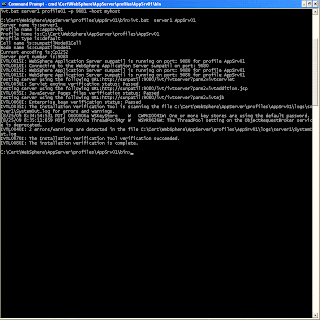


The install verification tool writes the log messages in <PROFILE_HOME>/logs/ivtClient.log file. This is how the sample log looks like

Server name is:server1
Profile name is:AppSrv01
Profile home is:C:\Cert\WebSphere\AppServer\profiles\AppSrv01
Profile type is:default
Cell name is:sunpatilNode01Cell
Node name is:sunpatilNode01
Current encoding is:Cp1252
Server port number is:9080
IVTL0015I: WebSphere Application Server sunpatil is running on port: 9080 for profile AppSrv01
IVTL0010I: Connecting to the WebSphere Application Server sunpatil on port: 9080
IVTL0015I: WebSphere Application Server sunpatil is running on port: 9080 for profile AppSrv01
Testing server using the following URL:http://sunpatil:9080/ivt/ivtserver?parm2=ivtservlet
IVTL0050I: Servlet engine verification status: Passed
Testing server using the following URL:http://sunpatil:9080/ivt/ivtserver?parm2=ivtAddition.jsp
IVTL0055I: JavaServer Pages files verification status: Passed
Testing server using the following URL:http://sunpatil:9080/ivt/ivtserver?parm2=ivtejb
IVTL0060I: Enterprise bean verification status: Passed
IVTL0035I: The Installation Verification Tool is scanning the file C:\Cert\WebSphere\AppServer\profiles\AppSrv01\logs\server1\SystemOut.log for errors and warnings.
[8/25/09 8:34:54:531 PDT] 0000000a WSKeyStore W CWPKI0041W: One or more key stores are using the default password.
[8/25/09 8:35:11:859 PDT] 0000000a ThreadPoolMgr W WSVR0626W: The ThreadPool setting on the ObjectRequestBroker service is deprecated.
IVTL0040I: 2 errors/warnings are detected in the file C:\Cert\WebSphere\AppServer\profiles\AppSrv01\logs\server1\SystemOut.log
IVTL0070I: The Installation Verification Tool verification succeeded.
IVTL0080I: The installation verification is complete.

Installation Verification Tool

Installation Verification tool(IVT) can be used to verify the installation of product and the Application server or Deployment manager profile. You can run the Install verification tool after installing product (With either DMGR or AppServer) profile, or after creating DMGR or AppServer profile. The IVT tool makes sure that the server process can start.


The install verification tool works differently depending on the type of profile that your verifying, If you are trying to verify a Deployment Manager, it will check that if DMGR is started if not it will start the DMGR and check if there are any errors in SystemOut.log or SystemErr.log.


If your trying to verify application server profile then it will check if the application server is started, if not start it. Once the server is started it will make requests to ivt servlet to verify that it can respond to request for servlet, JSP and EJB. In addition to that it will scan SystemOut.log and SystemErr.log to make sure that there are no errors.


No installation verification is possible for a custom profile. After federating the node and using the deployment manager to create a server, you can start the server process to verify its functionality.