Showing posts with label managepluginconfiguration. Show all posts

Load balancing options

You can specify the load balancing option that the plug-in uses when sending requests to the various application servers associated with that Web server


This field corresponds to the LoadBalanceWeight element in the plugin-cfg.xml file. We have two options to choose from for the load balancing


  • Round robin (default): When using this algorithm, the plug-in selects, at random, a cluster member from which to start. The first successful browser request will be routed to this cluster member and then its weight is decremented by one. New browser requests are then sent round robin to the other application servers and, subsequently, the weight for each application server is decremented by one. The spreading of the load is equal between application servers until one application server reaches a weight of zero. From then on, only application servers without a weight higher than zero will receive routed requests. The only exception to this pattern is when a cluster member is added or restarted.

  • RandomRequests are passed to cluster members randomly. Weights are not taken into account as in the round robin algorithm. The only time the application servers are not chosen randomly is when there are requests with associated sessions. When the random setting is used, cluster member election does not take into account where the last request was handled. This means that a new request could be handled by the same cluster member as the last request.

Automatically propagating the plugin-cfg.xml

The Web server plug-in configuration service by default propagates the plugin-cfg.xml file automatically


In my local environment both automatic regeneration and propagation of plugin is truned on so when i install application it automatically regenerates the plugin-cfg.xml and then copies it to the C:\Cert\HTTPServer\Plugins/config/webserver1 directory

Manually propagating the plug-in configuration file

After a plug-in configuration file is regenerated, it needs to be propagated to the Web server. The configuration service can automatically propagate the plugin-cfg.xml file to a Web server machine if it is configured on a managed node, and to an IBM HTTP Server if it is configured on an unmanaged node. For other scenarios, you must manually copy the file to the Web server machines. You can manually propagate the file by copying it from the application server machine to the Web server machine, or you can do it from the administrative console.

I tried propagating the plugin-cfg.xml file manually using the WAS Admin console by selecting the server and clicking on Propageate Plug-in button


Important: The Web server binary plug-in module checks for a new configuration file every 60 seconds. You can wait for the plug-in to find the changes, or you can restart the Web sever to invoke the changes immediately

Automatic regeneation of plugin-cfg.xml

The Web server plug-in configuration service by default regenerates the
plugin-cfg.xml file automatically. You can check the setting from WAS Admin console


When selected, the Web server plug-in configuration service automatically generates the plug-in configuration file whenever the Web server environment changes. For example, the plug-in configuration file is regenerated whenever one of the following activities occurs:


  • A new application is deployed on an associated application server.

  • The Web server definition is saved.

  • An application is removed from an associated application server.

  • A new virtual host is defined.


Whenever a virtual host definition is updated, the plug-in configuration file
is automatically regenerated for all of the Web servers.

In my local environment i tried installing a new web application and after installation was completed i checked the plugin-cfg.xml file and it had a entry for newly installed application. Also i could see this in my DMGR's SystemOut.log file


[9/14/09 21:29:23:290 PDT] 00000052 DeploymentMan A ADMS0208I: The configuration synchronization complete for cell.
[9/14/09 21:29:29:540 PDT] 00000048 FileRepositor A ADMR0016I: User defaultWIMFileBasedRealm/server:dmgrCell01_dmgrCellManager01_dmgr modified document cells/dmgrCell01/nodes/dmgrNode01/servers/webserver2/plugin-cfg.xml.
[9/14/09 21:29:29:540 PDT] 00000048 SystemOut O
[9/14/09 21:29:29:540 PDT] 00000048 SystemOut O
[9/14/09 21:29:29:540 PDT] 00000048 SystemOut O PLGC0005I: Plug-in configuration file = C:\Cert\WebSphere\AppServer\profiles\Dmgr01\config\cells\dmgrCell01\nodes\dmgrNode01\servers\webserver2\plugin-cfg.xml
[9/14/09 21:29:29:540 PDT] 00000048 SystemOut O
[9/14/09 21:29:29:540 PDT] 00000048 SystemOut O PLGC0052I: Plug-in configuration file generation is complete for the Web server dmgrCell01.dmgrNode01.webserver2.
[9/14/09 21:29:29:540 PDT] 00000048 SystemOut O PLGC0052I: Plug-in configuration file generation is complete for the Web server dmgrCell01.dmgrNode01.webserver2.
[9/14/09 21:29:29:556 PDT] 00000048 SystemOut O PLGC0051I: Plug-in configuration file generation started for the Web server dmgrCell01.dmgrNode01.webserver1.
[9/14/09 21:29:30:150 PDT] 00000048 FileRepositor A ADMR0016I: User defaultWIMFileBasedRealm/server:dmgrCell01_dmgrCellManager01_dmgr modified document cells/dmgrCell01/nodes/dmgrNode01/servers/webserver1/plugin-cfg.xml.
[9/14/09 21:29:30:150 PDT] 00000048 SystemOut O
[9/14/09 21:29:30:150 PDT] 00000048 SystemOut O
[9/14/09 21:29:30:150 PDT] 00000048 SystemOut O PLGC0005I: Plug-in configuration file = C:\Cert\WebSphere\AppServer\profiles\Dmgr01\config\cells\dmgrCell01\nodes\dmgrNode01\servers\webserver1\plugin-cfg.xml
[9/14/09 21:29:30:150 PDT] 00000048 SystemOut O
[9/14/09 21:29:30:150 PDT] 00000048 SystemOut O PLGC0052I: Plug-in configuration file generation is complete for the Web server dmgrCell01.dmgrNode01.webserver1.
[9/14/09 21:29:30:150 PDT] 00000048 SystemOut O PLGC0052I: Plug-in configuration file generation is complete for the Web server dmgrCell01.dmgrNode01.webserver1.
[9/14/09 21:29:56:775 PDT] 00000055 SystemOut O
[9/14/09 21:29:56:775 PDT] 00000055 SystemOut O PLGC0062I: The plug-in configuration file is propagated from C:\Cert\WebSphere\AppServer\profiles\AppSrv01\config\cells\dmgrCell01\nodes\dmgrNode01\servers\webserver2\plugin-cfg.xml to C:\Cert\HTTPServer\Plugins\config\webserver2\plugin-cfg.xml on the Web server computer.
[9/14/09 21:29:56:775 PDT] 0000001f SystemOut O
[9/14/09 21:29:56:775 PDT] 0000001f SystemOut O PLGC0048I: The propagation of the plug-in configuration file is complete for the Web server dmgrCell01.dmgrNode01.webserver2.
[9/14/09 21:29:56:853 PDT] 00000055 SystemOut O
[9/14/09 21:29:56:853 PDT] 00000055 SystemOut O PLGC0062I: The plug-in configuration file is propagated from C:\Cert\WebSphere\AppServer\profiles\AppSrv01\config\cells\dmgrCell01\nodes\dmgrNode01\servers\webserver1\plugin-cfg.xml to C:\Cert\HTTPServer\Plugins/config/webserver1/plugin-cfg.xml on the Web server computer.
[9/14/09 21:29:56:869 PDT] 0000001f SystemOut O
[9/14/09 21:29:56:869 PDT] 0000001f SystemOut O PLGC0048I: The propagation of the plug-in configuration file is complete for the Web server dmgrCell01.dmgrNode01.

Manually regenerating plugin-cfg.xml

You can regenerate the plugin-cfg.xml file manually in two ways

Using WAS Admin Console

Login into the WAS Admin console, select the web server for which you want to regenerate plugin and click on Generate Plug-in button. The new plugin-cfg.xml file will be created in the config directory of the web server like this


Using GenPluginCfg command

You can also regenerate plugin using the GenPluginCfg command line tool by going to dmgr_profile_home/bin directory and executing GenPluginCfg command like this

Regenerating plugin configuration file

The plug-in configuration file (i.e. plugin-cfg.xml), has information on how to route a request from browser to the correct application on the application server. So you will have to regenerate this file in case of there is any changes in websphere application server that affects how the request is routed from the web server to the application server.

The plugin-cfg.xml should be regenerated in following situations


  • Installing or removing application

  • Creating or changing virtual host

  • Creating or changing cluster

  • Creating a new server

  • Modifying HTTP transport settings


You can manually regenerate plugin using either the GetPluginCfg command, or using the WAS Admin console, or you can also setup the plug-in properties of the web server to enable automatic generation of the file, whenever relevant changes are made

Plugin configuration file

The plug-in configuration file (plugin-cfg.xml) contains routing information for all applications mapped to the Web server. This file is read by a binary plug-in module loaded in the Web server. An example of a binary plug-in module is the mod_ibm_app_server_http.dll file for IBM HTTP Server on the Windows platform. This is how the location of plugin-cfg.xml is defined in httpd.conf file


LoadModule was_ap20_module "C:\Cert\HTTPServer\Plugins\bin\32bits\mod_was_ap20_http.dll"
WebSpherePluginConfig "C:\Cert\HTTPServer\Plugins\config\webserver1\plugin-cfg.xml"


The binary plug-in module does not change. However, the plug-in configuration file for the binary module needs to be regenerated and propagated to the Web server whenever a change is made to the configuration of applications mapped to the Web server. The binary module reads the XML file to adjust settings and to locate deployed applications for the Web server.

This is how the sample plugin-cfg.xml file on my machine looks like

<?xml version="1.0" encoding="ISO-8859-1"?>
<!--HTTP server plugin config file for the webserver dmgrCell01.dmgrNode01.webserver1 generated on 2009.09.13 at 06:50:03 PM PDT-->
<Config ASDisableNagle="false" AcceptAllContent="false" AppServerPortPreference="HostHeader" ChunkedResponse="false" FIPSEnable="false" HTTPMaxHeaders="300" IISDisableNagle="false" IISPluginPriority="High" IgnoreDNSFailures="false" RefreshInterval="60" ResponseChunkSize="64" SSLConsolidate="false" TrustedProxyEnable="false" VHostMatchingCompat="false">
<Log LogLevel="Error" Name="C:\Cert\HTTPServer\Plugins/logs/webserver1/http_plugin.log"/>
<Property Name="ESIEnable" Value="true"/>
<Property Name="ESIMaxCacheSize" Value="1024"/>
<Property Name="ESIInvalidationMonitor" Value="false"/>
<Property Name="ESIEnableToPassCookies" Value="false"/>
<VirtualHostGroup Name="default_host">
<VirtualHost Name="*:9080"/>
<VirtualHost Name="*:80"/>
<VirtualHost Name="*:9443"/>
<VirtualHost Name="*:5060"/>
<VirtualHost Name="*:5061"/>
<VirtualHost Name="*:443"/>
<VirtualHost Name="*:9081"/>
<VirtualHost Name="*:9082"/>
</VirtualHostGroup>
<ServerCluster CloneSeparatorChange="false" GetDWLMTable="false" IgnoreAffinityRequests="true" LoadBalance="Round Robin" Name="cluster1" PostBufferSize="64" PostSizeLimit="-1" RemoveSpecialHeaders="true" RetryInterval="60">
<Server CloneID="14dtuu8g3" ConnectTimeout="0" ExtendedHandshake="false" LoadBalanceWeight="2" MaxConnections="-1" Name="dmgrNode01_server2" ServerIOTimeout="0" WaitForContinue="false">
<Transport Hostname="dmgr.webspherenotes.com" Port="9081" Protocol="http"/>
<Transport Hostname="dmgr.webspherenotes.com" Port="9444" Protocol="https">
<Property Name="keyring" Value="C:\Cert\HTTPServer\Plugins/config/webserver1/plugin-key.kdb"/>
<Property Name="stashfile" Value="C:\Cert\HTTPServer\Plugins/config/webserver1/plugin-key.sth"/>
</Transport>
</Server>
<Server CloneID="14dtuueci" ConnectTimeout="0" ExtendedHandshake="false" LoadBalanceWeight="2" MaxConnections="-1" Name="dmgrNode01_server4" ServerIOTimeout="0" WaitForContinue="false">
<Transport Hostname="dmgr.webspherenotes.com" Port="9082" Protocol="http"/>
<Transport Hostname="dmgr.webspherenotes.com" Port="9445" Protocol="https">
<Property Name="keyring" Value="C:\Cert\HTTPServer\Plugins/config/webserver1/plugin-key.kdb"/>
<Property Name="stashfile" Value="C:\Cert\HTTPServer\Plugins/config/webserver1/plugin-key.sth"/>
</Transport>
</Server>
<PrimaryServers>
<Server Name="dmgrNode01_server2"/>
<Server Name="dmgrNode01_server4"/>
</PrimaryServers>
</ServerCluster>
<UriGroup Name="default_host_cluster1_URIs">
<Uri AffinityCookie="JSESSIONID" AffinityURLIdentifier="jsessionid" Name="/dynasession/*"/>
<Uri AffinityCookie="JSESSIONID" AffinityURLIdentifier="jsessionid" Name="/dynacachereplication/*"/>
<Uri AffinityCookie="JSESSIONID" AffinityURLIdentifier="jsessionid" Name="/cachemonitor/*"/>
<Uri AffinityCookie="JSESSIONID" AffinityURLIdentifier="jsessionid" Name="/HelloWorldWeb/*"/>
<Uri AffinityCookie="JSESSIONID" AffinityURLIdentifier="jsessionid" Name="/helloworldportlet/HelloWorldPortlet/*"/>
<Uri AffinityCookie="JSESSIONID" AffinityURLIdentifier="jsessionid" Name="/helloworldportlet/HelloWorldPortlet2/*"/>
<Uri AffinityCookie="JSESSIONID" AffinityURLIdentifier="jsessionid" Name="/helloworldportlet/*"/>
<Uri AffinityCookie="JSESSIONID" AffinityURLIdentifier="jsessionid" Name="/NameSpaceWeb/*"/>
<Uri AffinityCookie="JSESSIONID" AffinityURLIdentifier="jsessionid" Name="/webappext/*"/>
<Uri AffinityCookie="JSESSIONID" AffinityURLIdentifier="jsessionid" Name="/sessionaffinity/*"/>
</UriGroup>
<Route ServerCluster="cluster1" UriGroup="default_host_cluster1_URIs" VirtualHostGroup="default_host"/>
<RequestMetrics armEnabled="false" loggingEnabled="true" rmEnabled="true" traceLevel="HOPS">
<filters enable="false" type="URI">
<filterValues enable="false" value="/snoop"/>
<filterValues enable="false" value="/hitcount"/>
</filters>
<filters enable="false" type="SOURCE_IP">
<filterValues enable="false" value="255.255.255.255"/>
<filterValues enable="false" value="254.254.254.254"/>
</filters>
<filters enable="false" type="JMS">
<filterValues enable="false" value="destination=aaa"/>
</filters>
<filters enable="false" type="WEB_SERVICES">
<filterValues enable="false" value="wsdlPort=aaa:op=bbb:nameSpace=ccc"/>
</filters>
</RequestMetrics>
</Config>


Important Note When the plug-in configuration file is generated, it does not include admin_host in the list of virtual hosts.

Request routing using plug-in

The Web Server plug-in uses an XML configuration file to determine whether a request is for the Web Server of the application server. When a request reaches the Web Server, the URL is compared to those managed by the plug-in. IF a match is found, the plug-in configuration file contains the information needed to forward the request to the web container using the web container inbound chain.

For example lets say you make a request to http://localhost/sessionaffinity/SessionAffinityServlet URL, so the Web Server Plugin will check the /sessionaffinity URL to find out how it is should be handled, It will check if there is matching UriGroup element in plugin-cfg.xml

<UriGroup Name="default_host_cluster1_URIs">
<Uri AffinityCookie="JSESSIONID" AffinityURLIdentifier="jsessionid" Name="/HelloWorldWeb/*"/>
<Uri AffinityCookie="JSESSIONID" AffinityURLIdentifier="jsessionid" Name="/NameSpaceWeb/*"/>
<Uri AffinityCookie="JSESSIONID" AffinityURLIdentifier="jsessionid" Name="/dynasession/*"/>
<Uri AffinityCookie="JSESSIONID" AffinityURLIdentifier="jsessionid" Name="/webappext/*"/>
<Uri AffinityCookie="JSESSIONID" AffinityURLIdentifier="jsessionid" Name="/dynacachereplication/*"/>
<Uri AffinityCookie="JSESSIONID" AffinityURLIdentifier="jsessionid" Name="/helloworldportlet/HelloWorldPortlet/*"/>
<Uri AffinityCookie="JSESSIONID" AffinityURLIdentifier="jsessionid" Name="/helloworldportlet/HelloWorldPortlet2/*"/>
<Uri AffinityCookie="JSESSIONID" AffinityURLIdentifier="jsessionid" Name="/helloworldportlet/*"/>
<Uri AffinityCookie="JSESSIONID" AffinityURLIdentifier="jsessionid" Name="/cachemonitor/*"/>
<Uri AffinityCookie="JSESSIONID" AffinityURLIdentifier="jsessionid" Name="/sessionaffinity/*"/>
</UriGroup>


In this case it knows that the /sessionaffinity/* URL is for dynamic content, so the next part is how to route it to correct server. It will read value of Name attribute for the UriGroup which is default_host_cluster1_URIs, and name of the cluster is cluster1. It will use these values find out virtual host and cluster


<Route ServerCluster="cluster1" UriGroup="default_host_cluster1_URIs" VirtualHostGroup="default_host"/>
<VirtualHostGroup Name="default_host">
<VirtualHost Name="*:9080"/>
<VirtualHost Name="*:80"/>
<VirtualHost Name="*:9443"/>
<VirtualHost Name="*:5060"/>
<VirtualHost Name="*:5061"/>
<VirtualHost Name="*:443"/>
<VirtualHost Name="*:9081"/>
<VirtualHost Name="*:9082"/>
</VirtualHostGroup>
<ServerCluster CloneSeparatorChange="false" GetDWLMTable="false" IgnoreAffinityRequests="true" LoadBalance="Round Robin" Name="cluster1" PostBufferSize="64" PostSizeLimit="-1" RemoveSpecialHeaders="true" RetryInterval="60">
<Server CloneID="14dtuu8g3" ConnectTimeout="0" ExtendedHandshake="false" LoadBalanceWeight="2" MaxConnections="-1" Name="dmgrNode01_server2" ServerIOTimeout="0" WaitForContinue="false">
<Transport Hostname="dmgr.webspherenotes.com" Port="9081" Protocol="http"/>
<Transport Hostname="dmgr.webspherenotes.com" Port="9444" Protocol="https">
<Property Name="keyring" Value="C:\Cert\HTTPServer\Plugins\config\webserver2\plugin-key.kdb"/>
<Property Name="stashfile" Value="C:\Cert\HTTPServer\Plugins\config\webserver2\plugin-key.sth"/>
</Transport>
</Server>
<Server CloneID="14dtuueci" ConnectTimeout="0" ExtendedHandshake="false" LoadBalanceWeight="2" MaxConnections="-1" Name="dmgrNode01_server4" ServerIOTimeout="0" WaitForContinue="false">
<Transport Hostname="dmgr.webspherenotes.com" Port="9082" Protocol="http"/>
<Transport Hostname="dmgr.webspherenotes.com" Port="9445" Protocol="https">
<Property Name="keyring" Value="C:\Cert\HTTPServer\Plugins\config\webserver2\plugin-key.kdb"/>
<Property Name="stashfile" Value="C:\Cert\HTTPServer\Plugins\config\webserver2\plugin-key.sth"/>
</Transport>
</Server>
<PrimaryServers>
<Server Name="dmgrNode01_server2"/>
<Server Name="dmgrNode01_server4"/>
</PrimaryServers>
</ServerCluster>


It knows that the cluster1 has two servers dmgrNode01_server2 and dmgrNode01_server4 and from the cluster definition it can find out the http and https port and then forward request to either of the server. The cluster definition also says that the Load balancing algorithm is Round robin

Effect on JSESSIONID in case of Server failure

Server clusters provide a solution for failure of an application server. Sessions created by cluster members in the server cluster share a common persistent session store. Therefore, any cluster member in the server cluster has the ability to see any user’s session saved to persistent storage. If one of the cluster members fail, the user can continue to use session information from another cluster member in the server cluster. This is known as failover. Failover works regardless of whether the nodes reside on the same machine or several machines.

After a failure, WebSphere redirects the user to another cluster member, and the user’s session affinity switches to this replacement cluster member. After the initial read from the persistent store, the replacement cluster member places the user’s session object in the in-memory cache, assuming the cache has space available for additional entries.

The Web server plug-in maintains the cluster member list in order and picks the cluster member next in its list to avoid the breaking of session affinity. From then on, requests for that session go to the selected cluster member. The requests for the session go back to the failed cluster member when the failed cluster member restarts.

I tried this with my SessionAffinity.war, after establishing session with Server 2 i stopped that server and then i tried sending request to web server. The JSESSIONID was changed after 1 request and now the clone Id part was pointing to server 4

How to find out the WAS server handling request from JSESSIONID

Debugging problems in distributed environment is little more difficult then debugging problems in the Standalone environment, because how do you find out the server that is handling the request. The JSESSIONID cookie value contains the identifier of the server that is handling the request, take a look at Session Affinity for more details.

I wanted to try this so i created a simple SessionAffinityServlet like this

public class SessionAffinityServlet extends HttpServlet {
private static final long serialVersionUID = 1L;
protected void doGet(HttpServletRequest request, HttpServletResponse response) throws ServletException, IOException {
response.setContentType("text/html");
System.out.println("Inside SessionAffinity.doGet()");
HttpSession httpSession = request.getSession();
response.getWriter().println("Session Name " + ServerName.getFullName() +"
");
response.getWriter().println("Session Id " + httpSession.getId() +"
");
Cookie[] cookies = request.getCookies();
for( int i = 0 ; i < cookies.length ;i++){
response.getWriter().println(cookies[i].getName() + " " + cookies[i].getValue() +"
");
}

}
}


As you can see only thing that i am doing in the doGet() method is reading the value of all the cookies and writing them to output. I am also writing out name of the server handling the request in the output.

I deployed this code to server and when i tried hitting the server and i see values like this.
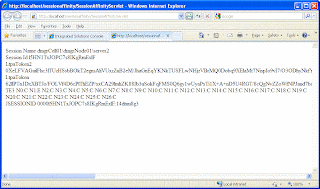


Now if i take the value of JSESSIONID the last part of the value is 14dtuu8g3. Now take this value and open the plugin-cfg.xml for web server plugin and search this value in it. You will find a Server element with value of CloneID matching the value from JSESSIONID that is the server dmgrNode01_server2 , handling the user request

<ServerCluster CloneSeparatorChange="false" GetDWLMTable="false" IgnoreAffinityRequests="true" LoadBalance="Round Robin" Name="cluster1" PostBufferSize="64" PostSizeLimit="-1" RemoveSpecialHeaders="true" RetryInterval="60">
<Server CloneID="14dtuu8g3" ConnectTimeout="0" ExtendedHandshake="false" LoadBalanceWeight="2" MaxConnections="-1" Name="dmgrNode01_server2" ServerIOTimeout="0" WaitForContinue="false">
<Transport Hostname="dmgr.webspherenotes.com" Port="9081" Protocol="http"/>
<Transport Hostname="dmgr.webspherenotes.com" Port="9444" Protocol="https">
<Property Name="keyring" Value="C:\Cert\HTTPServer\Plugins/config/webserver1/plugin-key.kdb"/>
<Property Name="stashfile" Value="C:\Cert\HTTPServer\Plugins/config/webserver1/plugin-key.sth"/>
</Transport>
</Server>
<Server CloneID="14dtuueci" ConnectTimeout="0" ExtendedHandshake="false" LoadBalanceWeight="2" MaxConnections="-1" Name="dmgrNode01_server4" ServerIOTimeout="0" WaitForContinue="false">
<Transport Hostname="dmgr.webspherenotes.com" Port="9082" Protocol="http"/>
<Transport Hostname="dmgr.webspherenotes.com" Port="9445" Protocol="https">
<Property Name="keyring" Value="C:\Cert\HTTPServer\Plugins/config/webserver1/plugin-key.kdb"/>
<Property Name="stashfile" Value="C:\Cert\HTTPServer\Plugins/config/webserver1/plugin-key.sth"/>
</Transport>
</Server>
<PrimaryServers>
<Server Name="dmgrNode01_server2"/>
<Server Name="dmgrNode01_server4"/>
</PrimaryServers>
</ServerCluster>


As you can see the plugin-cfg.xml has a ServerCluster element that has two Server child elements, that means the cluster has two servers and plugin will forward request to either of them

You can download the sample code from here

Web Server in WAS Installation

The Web Servers are necessary in the WAS installation for directing traffic from browsers to the applications that run in WAS. The Web Servers use Web Server plug-ins that depend on plugin configuration file to determine whether a request is for dynamic content of static content, if the request is for static content web server will server it but if it is for dynamic content it will use the plugin configuration file to figure out how to route that request to web application.