You can run this sample by first downloading Kafka 0.10.* from Apache Kafka WebSite, then you can create and start a test topic and send messages to it by following this Kafka Quick start document

elasticsearch-hadoop-hive-<eshadoopversion>.jar as parameter every time.
hive -hiveconf hive.aux.jars.path=/opt/elastic/elasticsearch-hadoop-2.4.3/dist/elasticsearch-hadoop-hive-2.4.3.jar;
ADD JAR /opt/elastic/elasticsearch-hadoop-2.4.3/dist/elasticsearch-hadoop-hive-2.4.3.jar;
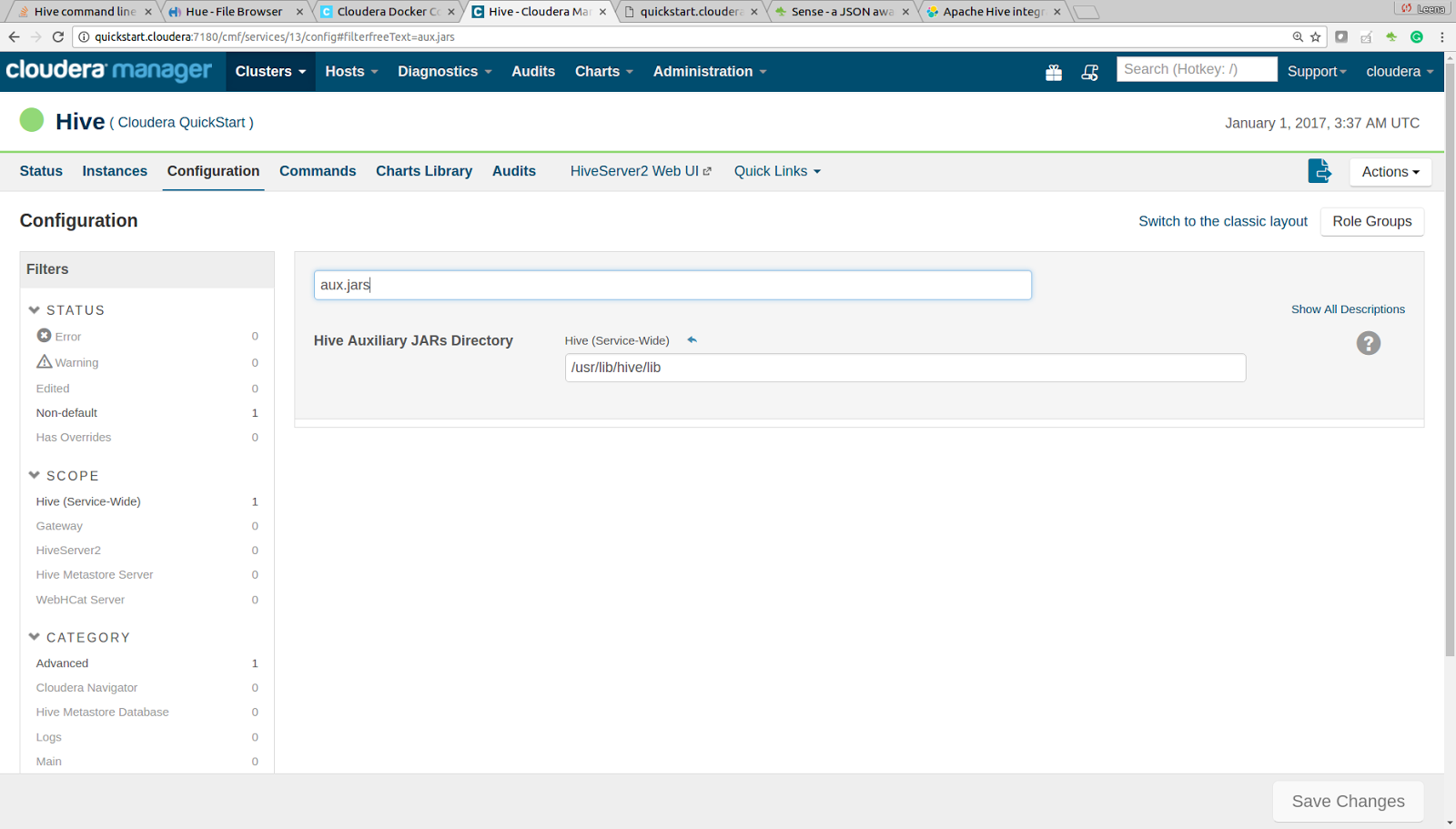
elasticsearch-hadoop-hive-<eshadoopversion>.jar into same directory on every node in your local machine. In my case i copied it to /usr/lib/hive/lib directory by executing following command
sudo cp /opt/elastic/elasticsearch-hadoop-2.4.3/dist/elasticsearch-hadoop-hive-2.4.3.jar /usr/lib/hive/lib/.
hive.aux.jars.path property to /usr/lib/hive/lib directory like this.
/bin/elasticsearch, and it started ok. When i ran
curl -XGET "http://localhost:9200/ from inside docker images i was able to access ElasticSearch, but when i tried to access it from my host machine, i could not access it. But where as i was able to access other services running on my docker image. So first i tried running netstat on my docker image to see why i was able to access other services but not elasticsearch (Also to make sure if elasticsearch was actually listening on port 9200 and i got output like this

http.host: 0.0.0.0
transport.host: 127.0.0.1


org.apache.kafka.connect.json.JsonSerializer and Desrializer org.apache.kafka.connect.json.JsonDeserializer that uses Jackson JSON parser. I wanted to figure out how to use it, so i built following sample
contactId, firstName and lastName. Take a look at main() method, in which i create simple object of Contact and then convert it to JSON and write to console.
1,Sunil,Patil from command line and parse it to Contact object first. Then i convert Contact object into JSONNode and pass it as value to Kafka, The JSONSerializer converts the JsonNode into byte[] com.fasterxml.jackson.databind.ObjectMapper and then on line 41 i am converting Contact object into JSONNode by calling objectMapper.valueToTree(contact)
org.apache.kafka.connect.json.JsonSerializer on the producer i have to use org.apache.kafka.connect.json.JsonDeserializer on the Consumer, Then while creating KafkaConsumer object i declare that i will get String key and JSONNode as value. Then once i get messages from Kafka i am calling mapper.treeToValue(jsonNode,Contact.class) to read the message and convert it back to Contact object.

as-avrodatafile and added hive-import option and i re-ran the workflow that looks like this
When i did that the oozie workflow failed with following error
7936 [uber-SubtaskRunner] WARN  org.apache.sqoop.mapreduce.JobBase  - SQOOP_HOME is unset. May not be able to find all job dependencies.
9202 [uber-SubtaskRunner] DEBUG org.apache.sqoop.mapreduce.db.DBConfiguration  - Fetching password from job credentials store
9207 [uber-SubtaskRunner] INFO  org.apache.sqoop.mapreduce.db.DBInputFormat  - Using read commited transaction isolation
9210 [uber-SubtaskRunner] DEBUG org.apache.sqoop.mapreduce.db.DataDrivenDBInputFormat  - Creating input split with lower bound '1=1' and upper bound '1=1'
25643 [uber-SubtaskRunner] INFO  org.apache.sqoop.mapreduce.ImportJobBase  - Transferred 931.1768 KB in 17.6994 seconds (52.6107 KB/sec)
25649 [uber-SubtaskRunner] INFO  org.apache.sqoop.mapreduce.ImportJobBase  - Retrieved 12435 records.
25649 [uber-SubtaskRunner] DEBUG org.apache.sqoop.hive.HiveImport  - Hive.inputTable: customers
25650 [uber-SubtaskRunner] DEBUG org.apache.sqoop.hive.HiveImport  - Hive.outputTable: customers
25653 [uber-SubtaskRunner] DEBUG org.apache.sqoop.manager.SqlManager  - Execute getColumnInfoRawQuery : SELECT t.* FROM `customers` AS t LIMIT 1
25653 [uber-SubtaskRunner] DEBUG org.apache.sqoop.manager.SqlManager  - No connection paramenters specified. Using regular API for making connection.
25658 [uber-SubtaskRunner] DEBUG org.apache.sqoop.manager.SqlManager  - Using fetchSize for next query: -2147483648
25658 [uber-SubtaskRunner] INFO  org.apache.sqoop.manager.SqlManager  - Executing SQL statement: SELECT t.* FROM `customers` AS t LIMIT 1
25659 [uber-SubtaskRunner] DEBUG org.apache.sqoop.manager.SqlManager  - Found column customer_id of type [4, 11, 0]
25659 [uber-SubtaskRunner] DEBUG org.apache.sqoop.manager.SqlManager  - Found column customer_fname of type [12, 45, 0]
25659 [uber-SubtaskRunner] DEBUG org.apache.sqoop.manager.SqlManager  - Found column customer_lname of type [12, 45, 0]
25660 [uber-SubtaskRunner] DEBUG org.apache.sqoop.manager.SqlManager  - Found column customer_email of type [12, 45, 0]
25660 [uber-SubtaskRunner] DEBUG org.apache.sqoop.manager.SqlManager  - Found column customer_password of type [12, 45, 0]
25660 [uber-SubtaskRunner] DEBUG org.apache.sqoop.manager.SqlManager  - Found column customer_street of type [12, 255, 0]
25660 [uber-SubtaskRunner] DEBUG org.apache.sqoop.manager.SqlManager  - Found column customer_city of type [12, 45, 0]
25660 [uber-SubtaskRunner] DEBUG org.apache.sqoop.manager.SqlManager  - Found column customer_state of type [12, 45, 0]
25660 [uber-SubtaskRunner] DEBUG org.apache.sqoop.manager.SqlManager  - Found column customer_zipcode of type [12, 45, 0]
25663 [uber-SubtaskRunner] DEBUG org.apache.sqoop.hive.TableDefWriter  - Create statement: CREATE TABLE IF NOT EXISTS `customers` ( `customer_id` INT, `customer_fname` STRING, `customer_lname` STRING, `customer_email` STRING, `customer_password` STRING, `customer_street` STRING, `customer_city` STRING, `customer_state` STRING, `customer_zipcode` STRING) COMMENT 'Imported by sqoop on 2016/12/22 21:18:39' ROW FORMAT DELIMITED FIELDS TERMINATED BY '\001' LINES TERMINATED BY '\012' STORED AS TEXTFILE
25664 [uber-SubtaskRunner] DEBUG org.apache.sqoop.hive.TableDefWriter  - Load statement: LOAD DATA INPATH 'hdfs://quickstart.cloudera:8020/user/cloudera/customers' INTO TABLE `customers`
25667 [uber-SubtaskRunner] INFO  org.apache.sqoop.hive.HiveImport  - Loading uploaded data into Hive
25680 [uber-SubtaskRunner] DEBUG org.apache.sqoop.hive.HiveImport  - Using in-process Hive instance.
25683 [uber-SubtaskRunner] DEBUG org.apache.sqoop.util.SubprocessSecurityManager  - Installing subprocess security manager
Intercepting System.exit(1)

<<< Invocation of Main class completed <<<

Failing Oozie Launcher, Main class [org.apache.oozie.action.hadoop.SqoopMain], exit code [1]

Oozie Launcher failed, finishing Hadoop job gracefully

Oozie Launcher, uploading action data to HDFS sequence file: hdfs://quickstart.cloudera:8020/user/cloudera/oozie-oozi/0000007-161222163830473-oozie-oozi-W/sqoop-52c0--sqoop/action-data.seq

Oozie Launcher ends
/user/cloudera/customers directory and i could actually see the data in the directory. But when Sqoop tried to create the table in hive it failed and the table did not get created in hive, this is the log statement that i am referring to
CREATE TABLE IF NOT EXISTS `customers` ( `customer_id` INT, `customer_fname` STRING, `customer_lname` STRING, `customer_email` STRING, `customer_password` STRING, `customer_street` STRING, `customer_city` STRING, `customer_state` STRING, `customer_zipcode` STRING) COMMENT 'Imported by sqoop on 2016/12/22 21:18:39' ROW FORMAT DELIMITED FIELDS TERMINATED BY '\001' LINES TERMINATED BY '\012' STORED AS TEXTFILE
sudo find / -name hive-site.xml
hdfs dfs -put /etc/hive/conf.dist/hive-site.xml
sqoop import --connect jdbc:mysql://localhost/test
--username root
--password cloudera
--table CUSTOMER
--as-avrodatafile
hdfs dfs -rm -R CUSTOMER

java.lang.RuntimeException: Could not load db driver class: com.mysql.jdbc.Driver
 at org.apache.sqoop.manager.SqlManager.makeConnection(SqlManager.java:875)
 at org.apache.sqoop.manager.GenericJdbcManager.getConnection(GenericJdbcManager.java:52)
 at org.apache.sqoop.manager.SqlManager.execute(SqlManager.java:763)
 at org.apache.sqoop.manager.SqlManager.execute(SqlManager.java:786)
 at org.apache.sqoop.manager.SqlManager.getColumnInfoForRawQuery(SqlManager.java:289)
 at org.apache.sqoop.manager.SqlManager.getColumnTypesForRawQuery(SqlManager.java:260)
 at org.apache.sqoop.manager.SqlManager.getColumnTypes(SqlManager.java:246)
 at org.apache.sqoop.manager.ConnManager.getColumnTypes(ConnManager.java:327)
 at org.apache.sqoop.orm.ClassWriter.getColumnTypes(ClassWriter.java:1846)
 at org.apache.sqoop.orm.ClassWriter.generate(ClassWriter.java:1646)
 at org.apache.sqoop.tool.CodeGenTool.generateORM(CodeGenTool.java:107)
 at org.apache.sqoop.tool.ImportTool.importTable(ImportTool.java:478)
 at org.apache.sqoop.tool.ImportTool.run(ImportTool.java:605)
 at org.apache.sqoop.Sqoop.run(Sqoop.java:143)
 at org.apache.hadoop.util.ToolRunner.run(ToolRunner.java:70)
 at org.apache.sqoop.Sqoop.runSqoop(Sqoop.java:179)
 at org.apache.sqoop.Sqoop.runTool(Sqoop.java:218)
 at org.apache.sqoop.Sqoop.runTool(Sqoop.java:227)
 at org.apache.sqoop.Sqoop.main(Sqoop.java:236)
 at org.apache.oozie.action.hadoop.SqoopMain.runSqoopJob(SqoopMain.java:197)
 at org.apache.oozie.action.hadoop.SqoopMain.run(SqoopMain.java:177)
 at org.apache.oozie.action.hadoop.LauncherMain.run(LauncherMain.java:49)
export OOZIE_URL=http://localhost:11000/oozie
oozie admin -shareliblist sqoop
sudo find / -name mysql*
/var/lib/sqoop/mysql-connector-java.jar
oozie admin -sharelibupdate

/user/oozie/share/lib/lib_20160406022812
hdfs -copyFromLocal /var/lib/sqoop/mysql-connector-java.jar /user/oozie/share/lib/sqoop/.
hdfs dfs -chmod 777 /user/oozie/share/lib/sqoop/mysql-connector-java.jar
oozie admin -sharedlibupdate
oozie admin -shareliblist sqoop | grep mysql*

sqoop import command like this, make sure that you pass --outdir schema as parameters to the sqoop import command, what that does is it generates the CUSTOMER.avsc and CUSTOMER.java in the schema directory on your local machine
sqoop import --connect jdbc:mysql://localhost/test
--username root
--password cloudera
--table CUSTOMER
--as-avrodatafile
--outdir schema
ls -ltrA schema

hdfs dfs -mkdir /user/cloudera/schema
hdfs dfs -copyFromLocal schema/CUSTOMER.avsc /user/cloudera/schema/.
CREATE EXTERNAL TABLE CUSTOMER
ROW FORMAT SERDE 'org.apache.hadoop.hive.serde2.avro.AvroSerDe'
STORED AS INPUTFORMAT 'org.apache.hadoop.hive.ql.io.avro.AvroContainerInputFormat'
OUTPUTFORMAT 'org.apache.hadoop.hive.ql.io.avro.AvroContainerOutputFormat'
LOCATION '/user/cloudera/CUSTOMER'
TBLPROPERTIES ('avro.schema.url'='/user/cloudera/schema/CUSTOMER.avsc');

org.elasticsearch.elasticsearch-hadoop version 5.0 jar. I could not find it in the regular maven repository so i had to include elasticsearch repository in my pom.xml
Then this is how my Spark program looks like, the main part is line 42 where i create Map of all the properties that i need for saving this RDD into ElasticSearch and then line 43, where i am calling wordCountJson.saveToEs(esMap), which actually takes care of writing data into elasticsearch
bin/kafka-topics.sh --create --zookeeper localhost:2181 --replication-factor 1 --partitions 1 --topic kafkalogger
bin/kafka-topics.sh --list --zookeeper localhost:2181
bin/kafka-console-consumer.sh --zookeeper localhost:2181 --topic kafkalogger


