Configure LogStash to read Apache HTTP Server logs and add GeoIP information in it.

LogStash is a tool that you can use for managing your logs. Basic idea is you configure logstash to read the log file, it enhances log records and then it writes those records to ElasticSearch. Then you can use Kibana to view your log files. I wanted to figure out where my web traffic is coming from, so i configured the LogStash server to read the HTTP server log, then used its geoip capability to find out the location of the request based on the ip of the request and store it in elastic search. This is how my logstash configuration looks like, before starting this i did download the GeoCity database from maxmind and configured LogStash to use it. Next i did start elasticsearch server on local machine to collect logs and used following command to start logstash server

java -jar logstash-1.3.2-flatjar.jar agent -f httpaccess.conf
Once logstash server was started i could see how it was parsing logs and posting them in elasticsearch. For example for the following log statement

129.143.71.36 - - [31/Aug/2011:08:35:17 -0700] "GET /favicon.ico HTTP/1.1" 200 3935 "-" "Mozilla/5.0 (X11; U; Linux i686; en-US) AppleWebKit/534.10 (KHTML, like Gecko) Chrome/8.0.552.224 Safari/534.10"
I could see logstash converting it into following JSON before posting it into elasticsearch

Using third part jars and files in your MapReduce application(Distributed cache)

If you want to use a third party jar in your MapReduce program you have two options, one is to create a single jar with all dependencies and other is to use the hadoop distributed cache option. I wanted to play around with both these options, so i built this simple application in which i read the Standard Apache HTTP Server log and parse it to read the ip address request is coming from. Then i use the ip address and invoke the Geo IP lookup to find out what city, country that request came from. Once i have a city i am using it to count number of requests that came from particular city. You can download the source code for this project from here. This is how the mapper class for my map-reduce application looks like, In the setup() method of my class i am creating object of com.maxmind.geoip2.DatabaseReader. I am passing the GeoLite2-City.mmdb the geo ip database file to my reader. In order for this program to work my MapReduce program needs access to com.maxmind.geoip2.geoip2 along with its dependencies, it also needs access to GeoLite2-City.mmdb.

Creating single jar with all dependencies

In order for this method to work add following plugin in your maven build file like this, in this case the jar will get created with main class as com.spnotes.hadoop.logs.ApacheLogMRDriver Now you can build a single jar file by executing mvn clean compile assembly:single command. Copy the GeoLite2-City.mmdb to the hadoop cluster(You can package it inside jar but might not be a good idea). Now you can execute following command to execute this job on cluster

hadoop jar ApacheLogsMR-jar-with-dependencies.jar -files GeoLite2-City.mmdb  /apache.log /output/logs/apachelogs

Using Hadoop distributed cache

Second option you have is to create a jar only for your map reduce program and pass dependencies to hadoop using distributed cache. In this option, you should make sure that your Driver class extends Configured like this Copy the dependency jars as well as GeoLite2-City.mmdb file on to the same machine that has hadoop cluster. Then execute following command to pass both jar and file to the hadoop.

hadoop jar ApacheLogsMR.jar -libjars geoip2-0.7.1.jar,maxmind-db-0.3.2.jar,jackson-databind-2.2.3.jar,jackson-core-2.2.3.jar,jackson-annotations-2.2.3.jar  -files GeoLite2-City.mmdb  /apache.log /output/logs/apachelogs

How reading and writing of files in HDFS works

Read Path
  1. The client program starts with Hadoop library jar and copy of cluster configuration data, that specifies the location of the name node.
  2. The client begins by contact the node node indicating the file it wants to read.
  3. The name node will validate clients identity, either by simply trusting client or using authentication protocol such as Kerberos.
  4. The client identity is verified against the owner and permission of the file.
  5. Namenode responds to the client with the first block ID and the list of data nodes on which a copy of the block can be found, sorted by their distance to the client, Distance to the client is measured according to Hadoop's rack topology
  6. With the block IDS and datanode hostnames, the client can now contact the most appropriate datanode directly and read the block data it needs. This process repeats until all the blocks in the file have been read or the client closes the file stream.
Write Path
  1. Client makes a request to open a file for wringing using the Hadoop FileSystem APIs.
  2. A request is sent to the name node to create the file metadata if the user has the necessary permission to do so. However, it initially has no associated blocks.
  3. Namenode responds to the client indicating that the request was successful and it should start writing data.
  4. The client library sends request to name node asking set of datanodes to which data should be written, it gets a list from name node
  5. The client makes connection to first data node, which in turn makes connection to second and second datanode makes connection to third.
  6. The client starts writing data to first data node, the first data node writes data to disk as well as to the input stream pointing to second data node. The second data node writes the data the disk and writes to the connection pointing to third data node and so on.
  7. Once client is finished writing it indicates closing of the stream that flushes data and writes to disk.

HDFS Java Client

Hadoop provides you with the Java API that you can use to perform some of the commonly used file operations such as read, create a new file or append at the end of the existing file or search for files. I wanted to try these common operartions out so i built this HelloHDFS project, that you can download from here This is the main class that takes command line argument for operation name and file path and performs the operation. After downloading the source code for the project you can use following maven command to build a single jar that also contains all the dependencies in it.

mvn clean compile assembly:single
Once your jar is ready you can use it like this for reading file from hdfs with relative path

java -jar target/HelloHDFS-jar-with-dependencies.jar read aesop.txt
or fully qualified path

java -jar target/HelloHDFS-jar-with-dependencies.jar read hdfs://localhost/user/user/aesop.txt

HDFS Daemons

An HDFS cluster has two types of nodes operating in master-worker pattern
  • NameNode: Manages the filesystem's directory structure and meta data for all the files. This information is persisted on local disk in the form of 2 files
    1. fsimage This is master copy of the metadata for the file system.
    2. edits: This file stores changes(delta/modifications) made to the meta information. In new version of hadoop (I am using 2.4) there would be multiple edit files(per transaction) that get created which store the changes made to meta.
    In addition to this the data node also has mapping of blocks to the datanode where the block is persisted but, that information does not get persisted to the disk. Instead data ndoes send list of blocks that they have to Namenode on startup and Namenode keeps is in memory The name node filesystem metadata is served entirely from RAM for fast lookup and retrieval and thus places a cap on how much metadata the name node can handle.
  • Secondary namenode: The job of secondary namenode is to merge the copy of fsimage and edits file for primary Namenode. So the basic issue is its very CPU consuming to take the fsimage and apply all the edits to it, so that work is delegated to secondary namenode. The secondary namenode downloads the edits file from primary and applies/merges it with fsimage and then sends it back to primary.
  • DataNde: This is workhorse daemon that is responsible for storing and retrieving blocks of data. This daemon is also responsible for maintaining block report(List of blocks that are stored on that datanode). It sends a heart beat to Namenode at regular interval(1 hr) and as part of the heart beat it also sends block report
There are two ways to start the daemons necessary for HDFS one is you can start they individually using start <daemontype> ex. start namenode or you can start all of them using start-dfs

How to control replication for a file stored in HDFS

In Hadoop you can control how many replicas of your file gets created. I wanted to try that out, so i tried different options. First option is to set up the replication factor in hdfs-site.xml, the settings in hdfs-site.xml apply to all the files (globals ettings)
  • dfs.replication: Default block replication. The actual number of replications can be specified when the file is created. The default is used if replication is not specified in create time.
  • dfs.replication.max: Maximal block replication.
  • dfs.namenode.replication.min: Minimal block replication.
After configuring global replication settings, i did restart hdfs daemons and when i executed hdfs fsck on one of the files to see the effect of setting replication and this is the output i got
You could also use the command line tools to set particular value of replication factor by executing hdfs setrep command like this.

hdfs dfs -setrep 5 /user/user/aesop.txt
Then i could verify the effect of replication settings like this
Then the last option is to set replication factor programmatically

Setting replication factor for a file programmatically

I wanted to figure out how to set/change replication factor for a file stored in HDFS, so i built this sample program, which has 3 methods
  • read(): This method takes a file path as input and print its content to system console
  • write(): This method takes a file path as input and open it for writing. It takes user input and writes that to the HDFS file
  • setReplication(): This method takes file path and replication factor as input and sets the replication factor for the given file path
Once you build the jar you can execute it by using command like this

java -jar target/HelloHDFS-jar-with-dependencies.jar read <hdfsfile_path>
Ex. In my case i have aesop.txt at hdfs://localhost/user/user/aesop.txt so i can print it by using following command

java -jar target/HelloHDFS-jar-with-dependencies.jar read aesop.txt

Finding out the blocks used for storing file in HDFS

The HDFS stores files by breaking them into blocks of 64 MB in size (default block size but you can change it). It stores these blocks across one or more disks/machines, Unlike filesystem for a single disk, a file in HDFS that is smaller than single block does not occupy a fully block's worth of underlying storage. Map tasks in Map Reduce operate on one block at a time (InputSplit takes care of assigning different map task to each of teh block). Replication is handled at block level, what it means is HDFS will replicate the block to different machine and if one of the block is corrupted or one of the machine where the block is stored is down it can read that from different machine, in case of corrupted unreachable block HDFS will take care of replication of the block to bring the replication factor back to the normal level. Some applications may choose to set a high replication factor for blocks in popular file to spread the read load on the cluster I wanted to figure out how the file gets stored in HDFS(/user/user/aesop.txt file as example), so i tried these steps on my local hadoop single-node cluster.
  1. First i looked at my hadoop-site.xml to find out value of dfs.data.dir element, which points to where the data is stored. In my case its /home/user/data directory
    
    <configuration>
      <property>
             <name>dfs.replication</name>
             <value>1</value>
      </property>
     <property>
             <name>dfs.data.dir</name>
             <value>/home/user/data</value>
      </property> 
    </configuration>
    
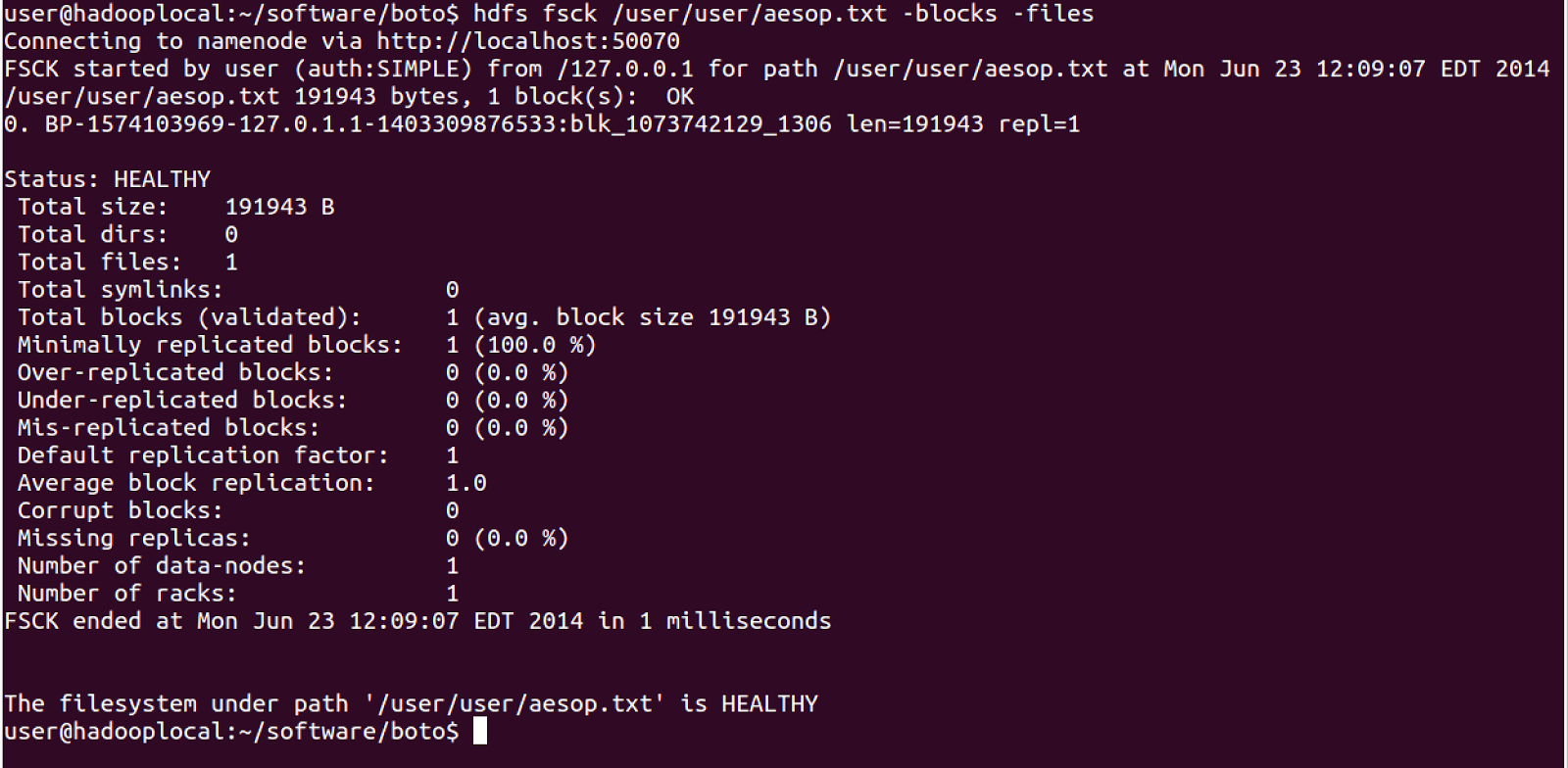
  2. There is a file /user/user/aesop.txt stored in my HDFS and i wanted to see where the file is stored so i did execute hdfs fsck /user/user/aesop.txt -blocks -files command to get list of blocks where this file is located
    It is stored in BP-1574103969-127.0.1.1-1403309876533:blk_1073742129_1306
  3. When i looked under /home/user/data/current directory i saw BP-1574103969-127.0.1.1-1403309876533 which gives me first part of the block name, and it has bunch of subdirectories
  4. The next part was to find blk_1073742129_1306 which is second part of the block name so i did search for it without _1306 the last part and i found .meta file and a normal file that contains the actual content of aesop.txt, when i opened it i could see the content of the file like this
Note: I found this on my local hadoop, but havent seen this method in documentation so it might not work for you. But the good part is as long as your HDFS commands are working you dont need to worry about this.

Making HTTPS outbound calls from mule

In the Getting markup from HTTPS connection in Java program entry i talked about how to make HTTPS call from stand alone java application. Recently i had to figure out how to make HTTPS call from Mule as part of flow, and these are the steps that i followed
  1. First step is to download the certificate for the site, but the InstallCert.java is no available on Oracle blog, instead i had to download it from here
  2. The next step is to compile the InstallCert.java by executing javac InstallCert.java
  3. One issue in using the trust store with Mule is that the password for the trust store file should be not null. So i had to execute the InstallCert command with changeit as password (same as oracle java's default password) like this java InstallCert wpcertification.blogspot.com changeit
  4. After executing last step you should see jssecacerts file in your local directory, that is your trust store file
  5. Next step is to create a HTTP connector in mule and while configuring go to security tab, check Enable HTTPS and configure the trust store to point to the jssecacerts file created in the last step and use changeit as password
  6. Last step is to add HTTP call in your flow, while adding that call use the HTTP connector that you configured in the previous step
  7. Now you can go ahead and test the flow and you should be able to make HTTPS call

WordCount MapReduce program using Pydoop (MapReduce framework for Python)

In WordCount MapReduce program using Hadoop streaming and python entry i used Hadoop Streaming for creating MapReduce program, but that program is quite verbose and it has limitations such as you cannot use counters,.. etc. So i decided to develop same program using Pydoop, which is framework that makes is easy to developing Hadoop Map Reduce program as well as working with HDFS easier. I followed these steps
  1. First i followed instructions on pydoop installation page to install pydoop on my machine. I ran into some issues during that process but eventually had pydoop installed
  2. Next i did create a HelloPydoop.py file which contains mapper function and reducer function like this. The mapper function gets linenumber and line at a time, in that function i am taking care of breaking the line into words and then writing them into output (writer.emit()). In the reducer method i am getting word and incount in the (key, [value,value1] format. Which is different that Hadoop streaming where i have to take care of change in key, so this code is much compact
  3. Once my HelloPydoop.py file is ready i could invoke it by passing to pydoop script in this aesop.txt is the name of the input file in HDFS and i want the output to get generated in output/pydoop directory in HDFS. pydoop script /home/user/PycharmProjects/HelloWorld/Pydoop/HelloPydoop.py aesop.txt output/pydoop
  4. After the map reducer is done executing i can look at its output by executing hdfs dfs -cat output/pydoop/part-00000 command