-installapp command line argument when invoking addNode or you can select the Include applications check box if using the WAS Admin console for adding new node. If selected an attempt will be made to copy the applications installed on the application server instance into the cell, but applications with same name as applications that are currently installed into the cell will not be federated into the cell configuration
Showing posts with label nodefederation.. Show all posts
Showing posts with label nodefederation.. Show all posts
Installapp option during node federation
When you federate node to a cell, any existing installed enterprise applications are uninstalled as part of federation process. If you wish to federate any existing user-installed applications into the cell, you can specify the


What is node group
You can have nodes in cells with different capabilities. Currently, this means having a cell with nodes on both distributed platforms and z/OS nodes. In the future, there might be other situations that fit this criteria. However, there are still restrictions on how the nodes can coexist. For example, you cannot have mixed nodes in a cluster. Node groups are created to group nodes of similar capability together to allow validation during system administration processes.
A default node group called DefaultNodeGroup is automatically created for you when the deployment manager is created, based on the deployment manager platform. New nodes on similar platforms are automatically added to the default group. A node must belong to at least one node group, but can belong to more than one.
As long as you have nodes in a cell with similar platforms, you do not need to do anything with node groups. New nodes are automatically added to the node group. However, before adding a node on a platform that does not have the same capabilities as the deployment manager platform, you will need to create the new node group.
A default node group called DefaultNodeGroup is automatically created for you when the deployment manager is created, based on the deployment manager platform. New nodes on similar platforms are automatically added to the default group. A node must belong to at least one node group, but can belong to more than one.
As long as you have nodes in a cell with similar platforms, you do not need to do anything with node groups. New nodes are automatically added to the node group. However, before adding a node on a platform that does not have the same capabilities as the deployment manager platform, you will need to create the new node group.
Removing Node
You can remove the node from either the WAS Admin console or using removeNode command line tool.
In the WAS Admin Console go to System Administrator - Nodes. Select the node and click on Remove Node button

Other option is using the removeNode command. Go to the server_profile_root/bin directory and execute removeNode command

In the WAS Admin Console go to System Administrator - Nodes. Select the node and click on Remove Node button

Other option is using the removeNode command. Go to the server_profile_root/bin directory and execute removeNode command

What removeNode does
You can remove a Node using either the WAS Admin Console or using command line .
The command performs the following operations:
The command performs the following operations:
- Connects to the deployment manager process to read the configuration data.
- Stops all of the running server processes of the node, including the node agent process.
- Removes servers in the node from clusters.
- Restores the original stand-alone node configuration. This original configuration was backed up when the node was originally added to the cell. When a node is removed, it is restored to its original configuration,except when it was added to the cell.
- Removes the node’s configuration from the master repository of the cell. The local copy of the repository held on each node will get updated at the next synchronization point for each node agent. Although the complete set of configuration files are not pushed out to other nodes, some directories and files are pushed out to all nodes.
- Removes installed applications from application servers in the cell that are part of the node being removed.
- Copies the original application server cell configuration into the active configuration.
What addNode does
The addNode command adds a new node to an existing administrative cell.
The actions the command performs are:
The actions the command performs are:
- Connects to the deployment manager process. This is necessary for the file transfers performed to and from the deployment manager in order to add the node to the cell.
- Attempts to stop all running application servers on the node.
- Backs up the current stand-alone node configuration to the
- <profile_home>/config/backup/base/ directory
- Copies the stand-alone node configuration to a new cell structure that
matches the deployment manager structure at the cell level. - Creates a new local config directory and definition (server.xml) for the node
agent. - Creates entries (directories and files) in the master repository for the new
node’s managed servers, node agent, and application servers. - Uses the FileTransfer service to copy files from the new node to the master
repository. - Uploads applications to the cell only if the -includeapps option is specified
- Performs the first file synchronization for the new node. This pulls everything
down from the cell to the new node. - Fixes the node’s setupCmdLine and wsadmin scripts to reflect the new cell
environment settings. - Launches the node agent.
Federating application server profile - through was admin console
If you already have a standalone server installed on machine you can federate it to the Deployment manager using either the addNode command and the process is very much similar to federating custom profile, with difference that the Application server that your trying to federate must be started and you have option to federate existing applications and buses to the deployment manager.
There is one more option for federating Application Servers profile, which is to use the Deployment Manager WAS Admin Console. Please follow these steps to federate Application Server.
Once the node creation is done you can verify it from the WAS Admin Console on DMGR
There is one more option for federating Application Servers profile, which is to use the Deployment Manager WAS Admin Console. Please follow these steps to federate Application Server.
- Start the standalone Application Server that you want to federate and note its SOAP port number
- Start the Deployment Manager, if its not already started and go to its WAS Admin Console
- Inside the WAS Admin Console go to System Administration - Nodes. Click on Add Node button

- On the next page it will ask you if you want to add a Managed Node or Unmanaged node, choose Managed node other option is mostly for adding Web Server
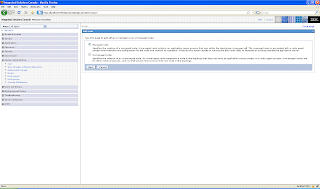
- On the next page you will have to provide all the details on the Node that you want to federate, things like its host name, SOAP port number, Admin login information,...

- On the next page it will give you an option to create windows service on the target machine for the node agent

- Once all the information is entered, it will start the actual node creation process, you can see the log on that page


Once the node creation is done you can verify it from the WAS Admin Console on DMGR
Federating custom profile
If you checked "Federate this node later" checkbox while creating the custom profile then you can federate the node to Deploymenet manager by following these steps
If you want you can also federate custom node as part of profile creation wizard by entering values on Federation dialog box like this.

In case of error in federating check custom_profile_root/logs/addNode.log file for details
- Start the deployment manager
- In order to federate the node you will need to know the hostname of the DMGR machine and the the SOAP port on which DMGR is listening. You can find that information using WAS Admin Console
- In the WAS Admin Console go to System Administrator - Nodes - DMGRNode. On the configuration page the value of Host name is the host name for DMGR

- In the WAS Admin Console go to System Administrator - Deployment Manager. On this page expand Ports section, the value of
SOAP_CONNECTOR_ADDRESS, is the SOAP port for deployment manager
- Once you have this information go to custom_profile_root/bin directory and execute
addNode <dmgrhost> <dmgr_soap_port>, it will take few minutes to federate node and show output something like this
- Once the federation is completed, you can check newly federated it in WAS Admin Console of DMGR. If your already logged into WAS Admin Console, log out and log back in. Now go to System Administrator - Nodes, you should see newly federated node.
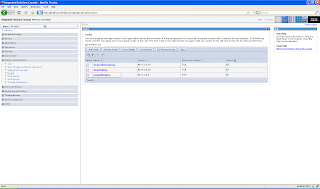


If you want you can also federate custom node as part of profile creation wizard by entering values on Federation dialog box like this.

In case of error in federating check custom_profile_root/logs/addNode.log file for details
What is node federation
In distributed environment there is one deployment manager and it is used to manage application servers on multiple machines. The way it works is you create a node agent on each of these machines and then the deployment manager makes use of this node agent to manage servers on different machines. It makes use of node agent for making configuration changes, installing file as well as getting PMI data.
The federation process is used for creating node agent on a machine. There are multiple ways in which you can create node agent
Irrespecitive of how you federate the node, WAS will first create a node agent on target machine and then start it.
The federation process is used for creating node agent on a machine. There are multiple ways in which you can create node agent
- Using the addNode command
- You can federate custom profile as part of profile creation wizard
Irrespecitive of how you federate the node, WAS will first create a node agent on target machine and then start it.
Subscribe to:
Posts (Atom)