Showing posts with label pagebuilder2. Show all posts

Creating new PageBuilder2 Skin

The Creating a new PageBuilder 2 theme post has information about how to create a new PageBuilder 2 based theme. You can follow following steps to create a new PageBuilder2 Based skin.


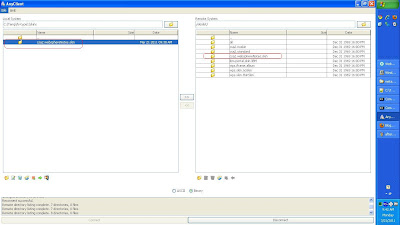
  • First use the WebDAV client to create connection to http://localhost:10039/wps/mycontenthandler/dav/skinlist, once you do that you should see list of all the skins available on the server like this


  • Download the csa2.standardfolder on your machine in say C:\Temp\fs-type1\skins


  • Rename the folder to say csa2.websphereNotes.skin

  • Open the localized_en.properties file in Notepad and change value of title like this

    #
    #Mon Mar 21 09:37:59 PDT 2011
    description=
    title=WebSphere Notes Skin


  • Upload the csa2.websphereNotes.skin folder back to http://localhost:10039/wps/mycontenthandler/dav/skinlist URL


  • Now if you log into the WPS Admin Console and go to Themes and Skins portlet you should see your skin, if you dont try restarting or creating a new Test Skin manually from the Admin Console, which should flush your cache


The next step would be to add this skin to your theme and then you can apply it to a page

Adding custom dynamic content spot in your PageBuilder2 theme

In the Creating a new PageBuilder2 Theme entry i mentioned the steps to create a Custom PageBuilder2 Theme, but in that case we only changed the static html file in the theme, but what if you want to add a new dynamic content spot or you want to override functionality in say Default.jsp or some other JSP, follow these steps


  1. Create a new .war file say WPNotesTheme which should be a servlet specification 2.4 compliant web application.

  2. Copy content of WebSphere\PortalServer\theme\wp.mashup.cc.theme\installedApps\wp.mashup.cc.theme.ear\PageBuilder2.war, into your war file. I always make sure to copy the WebContent\themes, WebContent\skins folder and also content inside the WEB-INF such as tld folder and other files


  3. Once your .war file is ready deploy it on the WebSphere Portal server as .war file using either WebSphere Application Server Admin Console or using RAD, If your deploying on RAD, it might fail saying the application has errors(It happens because we are using the portal theme Tags that RAD is not able to find ), To fix this issue go to Windows -> Preferences and check "Allow applications containing errors to be published on server" check box

    In my case i am deploying the WPNotesTheme at WPNotesTheme context root

  4. Once the WPNotesTheme.ear application is installed, next step is to change the theme to use the WPNotesTheme.ear instead of default PageBuilder2. In order to do that first take full export of your portal

  5. Create UpdateTheme.xml file by copying the csa2.websphereNotes related theme element in it. Change value of context-root element and WPNotesTheme element to WPNotesTheme because thats where the theme is installed, your xmlaccess should look something like this

    <?xml version="1.0" encoding="UTF-8"?>
    <request build="wpnext_528_01" type="update" version="7.0.0.0" xmlns:xsi="http://www.w3.org/2001/XMLSchema-instance"
    xsi:noNamespaceSchemaLocation="PortalConfig_7.0.0.xsd">
    <portal action="locate">
    <theme action="update" active="false" context-root="/WPNotesTheme" default="false" domain="rel"
    objectid="ZJ_CCBRVKG10GE2D0IEJ69NID3082" resourceroot="WPNotesTheme">
    <localedata locale="en">
    <title>WebSphere Notes Theme</title>
    <description/>
    </localedata>
    <parameter name="com.ibm.portal.themetype" type="string"
    update="set"><![CDATA[CSA2]]></parameter>
    <parameter name="theme.capability.oneUI" type="string"
    update="set"><![CDATA[2.1]]></parameter>
    <parameter name="theme.capability.dojo" type="string"
    update="set"><![CDATA[1.4.3]]></parameter>
    <parameter name="com.ibm.portal.friendly.name" type="string"
    update="set"><![CDATA[csa2.websphereNotes]]></parameter>
    <parameter name="theme.capability.mashups.enabler" type="string"
    update="set"><![CDATA[2.4]]></parameter>
    <parameter name="com.ibm.portal.theme.template.ref" type="string"
    update="set"><![CDATA[dav:fs-type1/themes/csa2.websphereNotes/]]></parameter>
    </theme>
    </portal>
    </request>


  6. Import the updatetheme.xml in your websphere portal server, and now if you access the theme test page you will notice that Default.jsp from your WPNotesTheme.war is getting executed, when you hit the THeme test page you should see that Default.jsp in your .war file is getting compile

    [3/18/11 19:33:02:501 PDT] 00000055 servlet I com.ibm.ws.webcontainer.servlet.ServletWrapper init SRVE0242I: [WPNotesThemeEAR] [/WPNotesTheme] [/themes/html/Default.jsp]: Initialization successful.

    You can also verify this by adding couple of System.out lines in your Default.jsp


  7. But you will notice that if you make change in any other JSP say bannerNav.jsp then your bannerNav.jsp is not getting executed instead the one in PageBuilder2.war is getting executed that is because your dynamic content spot in theme.html is still pointing to the PageBuilder2.war. YOu can fix this by changing the theme.html like this


    <a rel="dynamic-content" href="res:/WPNotesTheme/themes/html/PageBuilder2/bannerNav.jsp"></a>
    <%--
    <a rel="dynamic-content" href="dyn-cs:id:bannerNav@tl:oid:csa2.theme"></a>
    --%>


    In this case i am commenting out the bannerNav dynamic spot and replacing it with URL to res:/WPNotesTheme/themes/html/PageBuilder2/bannerNav.jsp, if you want you can actually change the value of dynamicContentSpot in the WAS Admin Console but it will require a server restart so may be you can make the changes before going to production

  8. Last step would be copy your modified theme_en.html to the WebDav store


Once your changes are uploaded on the server you can hit your theme test page and you should see your changes

Creating a new PageBuilder 2 theme

If you want to create a new PageBuilder2 Theme and you want to make minimal changes that require changing only static files then you can follow these steps

  1. Use WebDav client to connect to http://localhost:10039/wps/mycontenthandler/dav/themelist, you should see list of themes that are already installed on your portal like this

    YOu can see two themes here because WPS 7 ships with 2 different themes

    • csa2.theme: This is the PageBuilder2 theme which is applied to User pages(Home pages)

    • ibm.portal.theme.Portal: This is the old Portal Theme that is applied to Administration section of the portal


  2. Download the csa2.theme to your local folder say in c:\temp\

  3. Rename the csa2.theme folder to some other folder say csa2.websphereNotes, the csa2.websphereNotes will be used as uniqueName for theme

  4. Open the C:\Temp\csa2.websphereNotes\metadata\localized_en.properties file in the Notepad and change the value of title property to say WebSphere Notes like this

    #
    #Fri Mar 18 16:25:55 PDT 2011
    description= WebSphere Notes PageBuilder2 Theme
    title=WebSphereNotesTheme


  5. Now use the WebDav client to upload the csa2.webSphereNotes folder onto WebDav store at /themelist url


  6. Now if you login into portal and go to Themes and Skins portlet you should see the Theme that we just created

    If you dont see your theme name here then that means the name is cached somewhere you can either restart the server or click on Add New Theme button and create new theme from there to see your theme name.


After installing theme if you try to update the theme say in theme_en.html file you add some text and try uploading the new theme_en.html using /themelist URL then you will notice that the changes dont get reflected, because your supposed to use /fs-type1 URL for modifying static files. After installing csa2.websphereNotes theme i wanted to change the theme_en.html, so i used these steps

  • Connect to the http://localhost:10039/wps/mycontenthandler/dav/fs-type1 url


  • Go to themes folder and you should see csa2.websphereNotes theme here


  • Now go to /fs-type1/themes/csa2.websphereNotes/nls/ folder in WebDav and copy the modified theme_en.html file here


Now if you go to portal page that is using your test theme you should be able to see your changes

Some important URL's for working with WebDav

In the past i blogged about different WebDAV URL's and how i am having difficulty in figuring out which are the right URL's to use and since now i have some visibility in these things i thought i should list out the difference URL's that we are supposed to use

The WebDav URL always begins with http://localhost:10039/wps/mycontenthandler/dav/, my guess is portal makes use of friendly URL mappings to map all the Dav URLs, basic idea is you can create your own URL schema and use the

  1. /themelist: This URL is administration URL that should be used for registering new theme, when you upload theme folder with this URL, two things will happen first the files will get uploaded to WebDAV file store and the theme will be registered in portal data base (Normally we use xmlaccess script to register a theme)

  2. /skinlist: This URL is administration URL that should be used for registering a new Skin in portal database as well as uploading skin related files to WebDAV file store

  3. /contentmodel/wps.content.root: Should be used for accessing the page information and updating the portal page metadata, you can find more information at Using webdav to manage portal pages

  4. /fs-type1: This is generic file store for hosting static files in web dav


The fs-type1 static file store is divided into multiple folders


  • common-resources: Should be used to store the static files such as css, images, JavaScript that will be used by more than one theme

  • iwidgets: folder should be used for storing iWidget.xml file, How to publish iWidget xml in the WebDav store , has more information

  • layout-templates: The layout templates directory is used for storing all the page layout templates, there is one directory for every template. Surprisingly there is no admin URL for registering layout templates, may be because layouts are not stored in portal database(I cant see layout-template element in xmlaccess export)


  • skins: We are supposed to use this folder to update the existing skin related static files

  • themes: We are supposed to use this folder to update the static files in existing theme

  • system:

  • users

  • public:

Using custom dynamic content spot in PageBuilder2 theme

Page Builder2 theme makes use of dynamic content spots, which are nothing but .jsp's that are included in theme.html. I wanted to see if i can create a custom dynamic content spot and include it in my theme so i tried these steps and it worked


  • First i did create a simple testds.jsp file, it looks like this

    <h3>This is sample text generated by testds.jsp</h3>

    I am just generating one h1 element inside the testds.jsp

  • Then i copied the testds.jsp file inside the /PortalServer/theme/wp.mashup.cc.theme/installedApps/wp.mashup.cc.theme.ear/PageBuilder2.war/themes/html/PageBuilder2 folder like this


  • Once your testds.jsp is copied into the PageBuilder2.war you have two options for including it in the theme.html, one is directly using the path to PageBuilder2 and second is using the dynamic content spot matching service

    <a rel="dynamic-content" href="res:/PageBuilder2/themes/html/PageBuilder2/testds.jsp"></a>

    <a rel="dynamic-content" href="dyn-cs:id:testds@tl:oid:csa2.theme"></a>


    In this the href="res:/PageBuilder2/themes/html/PageBuilder2/testds.jsp" is sample of how you can directly include the testds.jsp inside your theme.html, it does not require any further steps

    But if you dont want to hardcode path to testds.jsp in your theme.html then you can can create a mapping in the dynamic content spot mapping service and use the mapped name. In my case i did create mapping to testds name so i have to use dyn-cs:id:testds@tl:oid:csa2.theme as value of href

  • Next step is to create mapping that maps testds name to res:/PageBuilder2/themes/html/PageBuilder2/testds.jsp, you will have to use WAS Admin console


With mapping in place i copied my theme_en.html file to the nls folder and now when i try accessing the portal page i can see the testds.jsp getting included once because of direct .jsp reference and once because of content spot mapping reference like this


Important Note: After i copied testds.jsp in the PageBuilder2 theme i tried accessing theme.html and first it was throwing test.jsp not found error but then i did export of PageBuilder2.war and updated it and it started working, you might want to do same thing in ND environment.

Working with PageBuilder2 theme .html, theme.html, skin.html

For last few days i was struggling to figure out how to modify theme.html and finally i got help from my colleagues Evan and Sanjay and now i am able to modify markup generated for theme.html. Take a look at the screen shot, i did add <h1>This is test modification in theme.html</h1> as first element to the body tag


You will have to use following steps to get it working


  • First of all create WebDav connection to /wps/mycontenthandler/dav/fs-type1 URL, this is the URL that you should use. It seems that http://localhost:10039/wps/mycontenthandler/dav/themelist url is not a valid URL for WebDav, it will keep throwing some weired error


  • Once your WebDav connection is established go to themes/PageBuilder2 folder, you will find a theme.html file here and there is locale specific version of theme.html in nls folder. I tried changing the theme.html in PageBuilder2 folder but somehow it never gets picked up instead portal always picks up locale specific version from nls folder


  • Make changes in theme.html and save those changes, if your using WebDav client(WebFolders, BitKinex) on Windows, first you will have to copy the file to local machine, modify it and then copy it back


Once your changes are updated you can refresh the page and you should be able to see the modified markup

PageBuilder 2 skin architecuter - skin.html

The PageBuilder 2 theme makes use of theme.html for defining layout of the page, it makes use of skin.html for generating markup for the skin. Note that it does not have UnlayeredContainer-H.jsp, UnlayeredContainer-V.jsp, control.jsp any more. It seems that layout.html will replace the horizontal and vertical container related functionality and the skin.html has functionality corresponding to Control.jsp.

This is how the skin.html from my local machine looks like

<div class="ibmPortalControl lotusWidget2 decoration-aria-region"><!--START LOCALE LINKS-->
<a rel="alternate" href="nls/skin_en.html" hreflang="en" class="ibmHideTemplate"></a>
<!-- decoration marks the Dojo resource name of the decoration object instantiated at the root of this layout control -->
<span style="display:none" class="decoration">com.ibm.skins.Standard.skin</span>
<!-- asa.portlet.id marks the node whose contents are the id of this layout control;
set at runtime by script in the decoration instance -->
<span style="display:none" class="asa.portlet.id"></span>
<!-- decoration classes are used by DecorationManager for adding javascript event handlers -->
<h2 class="decoration-titlebar decoration-dndHandle">
<span class="lotusLeft"> <!-- lm-dynamic-title node marks location for dynamic title support -->
<span class="lm-dynamic-title asa.portlet.title decoration-title">
<a rel="dynamic-content" href="lm:title"></a>
</span>
</span>
<a aria-haspopup="true" title="${nls.Theme:a11y_display_menu:xml}" href="javascript:;"
class="lotusIcon lotusActionMenu decoration-contextMenuAction">
<span class="lotusAltText">${nls.Theme:theme_actions:xml}</span>
</a>
</h2>
<!-- decoration-contextMenu is the anchor node to build the context menu link and widget around -->
<div style="display:none" class="decoration-contextMenu"></div>
<div class="lotusWidgetBody"> <!-- lm:control dynamic spot injects markup of layout control -->
<a rel="dynamic-content" href="lm:control"></a>
</div>
</div>


The skin.html also makes use of concept of dynamic content spot.


  • lm:title : represents the title of the portlet

  • lm:control : represents the body of the portlet

PageBuilder2 theme architecture - Dynamic Content Spot

In the PageBuilder2 theme architecture - theme.html i mentioned that the theme.html makes use of concept of dynamic content spot. The basic concept is that the theme.html want to include .jsp page, since the .html page cannot directly add .jsp page since .jsp pages need servlet context to compile and execute, those .jsps are packaged in the PageBuilder2.war along with Default.jsp.


Ex. the theme.html wants to forward control to asa.jsp for generating active sight analytics(asa) related markup, so you can include that .jsp in the theme.html like this

<a rel="dynamic-content"
href="res:/PageBuilder2/themes/html/PageBuilder2.0/asa.jsp"></a>


But this approach has following problems

  • Reference by name abstracts the dynamic content away from the implementation. This is necessary if the theme needs to run on multiple runtimes, for example WebSphere Portal and IBM® Mashup Center. The portal implementation of the navigation tabs can be a JSP that contains portal specific code. The Mashup Center on the other hand cannot execute portal JSP code, but provides an iWidget instead.

  • Reference by name isolates the theme author from having to know the underlying code information. This is useful if the theme author is an HTML and CSS designer, but not a J2EE or JavaScript developer. The HTML and CSS developer needs to know only the list of named content spots and the simple syntax to add it. This developer can then write code without having to know JSP path names etc.


So in order to provide one more layer of indirection, WPS has WP_DynamicContentSpotMappings resource provider that lets you map a symbolic name to the location of .jsp like this


Now inside your theme.html you can refer to the asa.jsp like this

<a rel="dynamic-content" href="dyn-cs:id:asa@tl:oid:csa2.theme" />


The resolver framework takes care of finding the actual .jsp file from this symbolic name. Also if you start digging into the .jsp files you will notice that they also include other .jsps by using this type of syntax


<r:dataSource uri="dyn-cs:id:configGlobal@tl:oid:csa2.theme" escape="none">
<r:param name="pragma" value="cache"/>
</r:dataSource>
<r:dataSource uri="dyn-cs:id:configDynamic@tl:oid:csa2.theme" escape="none"/>

PageBuilder2 theme architecture - theme.html

In the PageBuilder2 Theme architecture - bootstrap jsps, i mentioned that the Default.jsp of the PageBuilder2 theme does not have any HTML markup, instead it just initializing few values and then forwarding control to theme.html.

This is how the theme.html which ships with the WPS looks like. As you can see the theme.html is pretty clean and small,


<!DOCTYPE html PUBLIC "-//W3C//DTD XHTML 1.0 Transitional//EN" "http://www.w3.org/TR/xhtml1/DTD/xhtml1-transitional.dtd">
<html xmlns="http://www.w3.org/1999/xhtml" lang="${locale}" xml:lang="${locale}">
<head>
<meta http-equiv="Content-Type" content="text/html; charset=utf-8" />
<!-- rel=dynamic-content indicates an element that is replaced with the contents produced by the specified href.
dyn-cs:* URIs are resolved using the WP DynamicContentSpotMappings resource environment provider. These values can
also be set using theme metadata if a theme is specified in the URI (e.g. @tl:oid:theme_unique_name). -->
<link rel="dynamic-content" href="dyn-cs:id:head@tl:oid:csa2.theme">
<script type="text/javascript">
dojo.addOnLoad(function(){
com.ibm.pb.themes.commonInit({
setWindowTitle:true,
useNavigationController: true,
useRenderingController: true,
useDNDController: true,
initLiveTextService: true,
lazyLoadModeWidgets: true,
navPrimingContainers: ["selectionPathPrimer","topNavLinks","navTabsRoot"],
customInit: com.ibm.themes.PageBuilder2.init
});
dojo.publish("com.ibm.portal.theme.portlet_ready"); // notifies ASA that portlet IDs are ready to be found in the DOM
});
</script>
<!-- rendering is delegated to the specified href for each locale --><!--START LOCALE LINKS-->
<link rel="alternate" href="nls/theme_en.html" hreflang="en">
</head>
<body class="lotusui tundra${rtl| lotus_rtl mumrtl} locale_${locale}" ${bidi.dir.attribute} >

<div class="lotusFrame">
<div class="lotusui lotusTitleBar">
<div class="lotusRightCorner">
<div class="lotusInner">
<a rel="dynamic-content" href="dyn-cs:id:tabNav@tl:oid:csa2.theme"></a>
<div style="clear: both;"></div>
</div>
</div>
</div><!--end titleBar-->
<a rel="dynamic-content" href="dyn-cs:id:pageToolbar@tl:oid:csa2.theme"></a>
<div class="lotusMain" id="lotusMain">
<!-- pb-pageMode-edit indicates that an iwidget should be lazy-loaded upon entering edit mode for the page -->
<div class="iw-iWidget iw-Standalone pb-pageMode-edit" id="customizeShelfContainer">
<a class="iw-Definition"
href="/mccbuilder/widget-catalog/customizeShelf.xml?pragma=cache&max-age=1209600&cache-scope=public&vary=none"></a>
</div>
<div style="clear:both;"></div>
<a id="lotusMainContent" name="lotusMainContent"></a>
<div id="layoutContainers" class="ibmLayoutContainers ibmLayoutContainersHidden" role="main">
<a rel="dynamic-content" href="dyn-cs:id:layout@tl:oid:csa2.theme"></a>
</div>
</div><!--end main-->
<div class="lotusFooter"></div><!-- page footer -->
</div><!--end frame-->
<!-- active site analytics additions -->
<a rel="dynamic-content" href="dyn-cs:id:asa@tl:oid:csa2.theme"></a>
<!-- This is responsible for bootstrapping the configuration for the javascript framework.
This is located here instead of the head section to improve client performance. -->
<a rel="dynamic-content" href="dyn-cs:id:config@tl:oid:csa2.theme"></a>

<div id="systemWidgets">
<div class="iw-iWidget iw-Standalone" id="templateLayout">
<a class="iw-Definition"
href="/mccbuilder/widget-catalog/templateLayout.xml?pragma=cache&max-age=1209600&cache-scope=public&vary=none"></a>
</div>
<div class="iw-iWidget mumHiddenWidget iw-Standalone" id="pageActionsMenu">
<a class="iw-Definition"
href="/mccbuilder/widget-catalog/ContentSetMenu.xml?pragma=cache&max-age=1209600&cache-scope=public&vary=none"></a>
<span class="iw-ItemSet" title="attributes" style="display: none;">
<a class="iw-Item" href="#contextMenuID">pageActions</a>
<a class="iw-Item" href="#anchorCSSClass">lotusCommonActionMenuAnchor</a>
<a class="iw-Item" href="#menuCSSClass">lotusCommonActionMenu</a>
<a class="iw-Item" href="#resourceType">com.ibm.mashups.enabler.navigation.NavigationNode</a>
<a class="iw-Item" href="#openEvent">PageActions.open</a>
<a class="iw-Item" href="#closeEvent">PageActions.close</a>
</span>
</div>
<div class="iw-iWidget mumHiddenWidget iw-Standalone" id="userActionsMenu">
<a class="iw-Definition" href="/mccbuilder/widget-catalog/ContentSetMenu.xml?pragma=cache&max-age=1209600&cache-scope=public&vary=none"></a>
<span class="iw-ItemSet" title="attributes" style="display: none;">
<a class="iw-Item" href="#contextMenuID">userActions</a>
<a class="iw-Item" href="#anchorCSSClass">lotusCommonActionMenuAnchor</a>
<a class="iw-Item" href="#menuCSSClass">lotusCommonActionMenu</a>
<a class="iw-Item" href="#resourceType">com.ibm.mashups.enabler.user.User</a>
<a class="iw-Item" href="#openEvent">UserActions.open</a>
<a class="iw-Item" href="#closeEvent">UserActions.close</a>
</span>
</div>
<div class="iw-iWidget mumHiddenWidget iw-Standalone pb-pageMode-edit" id="newPage">
<a class="iw-Definition"
href="/mccbuilder/widget-catalog/NewPageDialog.xml?pragma=cache&max-age=1209600&cache-scope=public&vary=none"></a>
<span class="iw-ItemSet" style="display:none" title="attributes">
<a class="iw-Item" href="#controller">ibmCfg.controllers.navigation</a>
<a class="iw-Item" href="#allowFriendlyURL">true</a>
<a class="iw-Item" href="#allowPrivate">true</a>
</span>
</div>
<!-- The lazyLoad attribute is used for widgets that are explicitly loaded by another source at a later point in time
(in this case the displayHelper). -->
<div class="iw-iWidget mumHiddenWidget iw-Standalone" lazyLoad="true" id="sharePage">
<a class="iw-Definition"
href="/mccbuilder/widget-catalog/accessControl.xml?pragma=cache&max-age=1209600&cache-scope=public&vary=none"></a>
</div>
<div class="iw-iWidget mumHiddenWidget iw-Standalone" lazyLoad="true" id="reorderPage">
<a class="iw-Definition"
href="/mccbuilder/widget-catalog/reorderPageWidget.xml?pragma=cache&max-age=1209600&cache-scope=public&vary=none"></a>
</div>
<div class="iw-iWidget mumHiddenWidget iw-Standalone" lazyLoad="true" id="viewMorePage">
<a class="iw-Definition"
href="/mccbuilder/widget-catalog/viewMorePage.xml?pragma=cache&max-age=1209600&cache-scope=public&vary=none"></a>
</div>
<div class="iw-iWidget mumHiddenWidget iw-Standalone" lazyLoad="true" id="wireInterface">
<a class="iw-Definition"
href="/mccbuilder/widget-catalog/wireInterfaceWithSettings.xml?pragma=cache&max-age=1209600&cache-scope=public&vary=none"></a>
<span class="iw-ItemSet" title="attributes" style="visibility: hidden; display: none">
<a class="iw-Item" style="visibility:hidden;display:none;" href="#displaySettings">true</a>
<a class="iw-Item" style="visibility:hidden;display:none;" href="#displayPortletsAndWidgetsWarningMessage">true</a>
</span>
</div>
<div class="iw-iWidget mumHiddenWidget iw-Standalone pb-pageMode-edit" id="autoWiringManager">
<a class="iw-Definition"
href="/mccbuilder/widget-catalog/autoWiringManager.xml?pragma=cache&max-age=1209600&cache-scope=public&vary=none"></a>
</div>
<div class="iw-iWidget iw-Standalone" id="dialogDisplayer">
<a class="iw-Definition" style="visibility:hidden;display:none;"
href="/mccbuilder/widget-catalog/displayHelper.xml?pragma=cache&max-age=1209600&cache-scope=public&vary=none"> </a>
<span class="iw-ItemSet" title="attributes" style="visibility: hidden; display: none;">
<a class="iw-Item" style="visibility:hidden;display:none;" href="#sharePage">sharePage</a>
<a class="iw-Item" style="visibility:hidden;display:none;" href="#reorderPage">reorderPage</a>
<a class="iw-Item" style="visibility:hidden;display:none;" href="#viewMorePage">viewMorePage</a>
<a class="iw-Item" style="visibility:hidden;display:none;" href="#wireInterface">wireInterface</a>
<a class="iw-Item" style="visibility:hidden;display:none;" href="#autoWiringManager">autoWiringManager</a>
</span>
</div>
</div>
</body>
</html>


If you compare the theme.html to the markup generated for the portal page you will notice that the portal page has more markup(as expected it has markup generated by portal, markup for navigation,..)


Also if you compare this markup to the markup generated for portal page you will notice that most of the markup for normal page is generated inside div class="lotusFrame", which is the highlighted code. There is lot of code under div id="systemWidgets" but my guess is that code kicks in only in case of iwidget on a page.

Now the basic question would be then who is generating the portal markup, who takes care of generating navigation, forwarding control to portal aggregation engine,.. The answer would be its the dynamic content spots in the .html

PageBuilder2 Theme architecture - bootstrap jsps

In the PageBuilder2 theme architecture i mentioned that first thing that Default.jsp does is forward control to bootstrap.jspf and bootstrapPortal.jspf.

These two files are used for calculating portal level variables such as


  • isPageRenderModeCSA: If the page render mode is CSA or SSA

  • Locale: Avaiable locale, default locale

  • user Id: user id of the anonymous and authenticated user, if user is logged in

  • ContentHandlerURI: The URI for the ContentHandler by default it will always be /wps/contenthandler for anonymous or /wps/mycontenthandler for authenticated user, this URI is also used a base for all the resources

  • portalContext: /wps

  • portalProxyUrl: /wps/proxy

  • Dojo information: dojoRoot /portal_dojo/v1.4.3 and dojoContextRoot is /portal_dojo

  • themeWebDAVBaseURI: dav:fs-type1/themes/PageBuilder2/

  • themeWebAppBaseURI: /PageBuilder2/themes/html/PageBuilder2

  • colorPalette: By default its empty but you can override these values at page level

  • pageStyle:By default its empty but you can override these values at page level

  • navTabsLevel,navTabRootNode: Navigation generation related information

PageBuilder2 theme architecture - Default.jsp

IBM introduced PageBuilder2 theme in WPS 7.0, it allows user to define the theme using static html file, it seems that there are different pieces and i wanted to check how the different pieces fit together, so i started debugging theme and these are my notes

Even though the PageBuilder2 theme is changed one thing is still same which is Default.jsp file in the theme acts as entry point, it controls the overall theme. This is how the Default.jsp of PageBuilder2 theme looks like


<%@ page session="false" buffer="none" %>
<%@ page trimDirectiveWhitespaces="true" %>
<%-- Licensed Materials - Property of IBM, 5724-E76, (C) Copyright IBM Corp. 2001, 2004, 2006, 2010 - All Rights reserved. --%>
<%@ taglib uri="http://java.sun.com/jsp/jstl/core" prefix="c" %>
<%@taglib uri="http://java.sun.com/jsp/jstl/functions" prefix="fn" %>
<%@taglib uri="http://www.ibm.com/xmlns/prod/websphere/portal/v7.0/portal-core" prefix="portal-core" %>
<%@taglib uri="http://www.ibm.com/xmlns/prod/websphere/portal/v7.0/portal-logic" prefix="portal-logic" %>
<%@taglib uri="http://www.ibm.com/xmlns/prod/websphere/portal/v7.0/portal-fmt" prefix="portal-fmt" %>
<%@taglib uri="/WEB-INF/tld/portal-internal.tld" prefix="portal-internal" %>
<%@taglib uri="/WEB-INF/tld/resolver-v7.tld" prefix="r" %>
<portal-core:constants/>
<portal-core:defineObjects/>
<portal-internal:adminNavHelper/>
<%@ include file="./bootstrap.jspf" %>
<%@ include file="./bootstrapPortal.jspf" %>
<%-- The theme template is determined by whether there is a value set in page meta data,
if no value is set in the meta data, then it defaults to the template stored in webdav --%>
<c:choose>
<c:when test="${empty themeWebDAVBaseURI}">
<c:set var="themeTemplateURI" value="" />
</c:when>
<c:when test="${empty dirMD['com.ibm.portal.theme.template.file.name.html']}">
<c:set var="themeTemplateURI" value="${themeWebDAVBaseURI}theme.html" />
</c:when>
<c:otherwise>
<c:set var="themeTemplateURI" value="${themeWebDAVBaseURI}${dirMD['com.ibm.portal.theme.template.file.name.html']}" />
</c:otherwise>
</c:choose>
<c:choose>
<c:when test="${!empty themeTemplateURI}">
<r:dataSource uri="spa:${wp.identification[wp.selectionModel.selected]}" escape="none">
<r:param name="themeURI" value="${themeTemplateURI}"/>
<r:param name="mime-type" value="text/html"/>
</r:dataSource>
</c:when><%-- If no theme template is found, the fallback.jsp is rendered--%>
<c:otherwise>
<%@ include file="./fallback.jsp" %>
</c:otherwise>
</c:choose>


The Default.jsp is very simple and it does not have any HTML markup generation code at all. The functionality of Default.jsp can be broken into 3 parts


  • Initializing variables required for the theme: At the start of the Default.jsp it is forwarding control to bootstrap.jspf and bootstrapPortal.jspf, It looks like these two files are used for initializing all the variables that are required for theme. Things like if user is logged in, if yes what is userId, available locale, paths to contenthandler and also some variables that are required for calculating themeTemplateURI

  • Cacluate value of themeTemplateURI Next it tries to calculate value of themeTemplateURI. In the default implementation it will always be dav:fs-type1/themes/PageBuilder2/theme.html but your allowed to override this value at page level as well as at theme level

  • Forwarding control to r:dataSource for generating markup Once the value of themeTemplateURI is calculated control will fowarded to r:dataSource jsp tag, and this tag will be responsible for parsing theme.html, evaluating dynamic content spot, and generating final html markup

Where is source code for Page Builder 2 theme

The WebSphere portal server has a very different directory layout/ application deployment structure compared to the previous version, i think this was done to support multiple profiles but i need to dig into that part.

I am trying to learn about PageBuilder2(CSA2) theme that was introduced in WPS 7.0, so i thought i will look into the source code to find out how it works so i went to wp_profiles/installedApps folder but i could not see PageBuilder2.ear. In fact it seems that installedApps folder has few applications


But when i tried accessing any portal page i could see some PageBuilder2 theme related jsp's being initialized

[9/29/10 6:24:12:832 PDT] 00000081 servlet I com.ibm.ws.webcontainer.servlet.ServletWrapper init SRVE0242I: [PageBuilder2_Theme] [/PageBuilder2] [/themes/html/Default.jsp]: Initialization successful.
[9/29/10 6:24:14:684 PDT] 00000081 servlet I com.ibm.ws.webcontainer.servlet.ServletWrapper init SRVE0242I: [PageBuilder2_Theme] [/PageBuilder2] [/themes/html/PageBuilder2/head.jsp]: Initialization successful.
[9/29/10 6:24:21:426 PDT] 00000081 servlet I com.ibm.ws.webcontainer.servlet.ServletWrapper init SRVE0242I: [PageBuilder2_Theme] [/PageBuilder2] [/themes/html/PageBuilder2/bannerNav.jsp]: Initialization successful.
[9/29/10 6:24:21:581 PDT] 00000081 servlet I com.ibm.ws.webcontainer.servlet.ServletWrapper init SRVE0242I: [PageBuilder2_Theme] [/PageBuilder2] [/themes/html/PageBuilder2/search.jsp]: Initialization successful.
[9/29/10 6:24:21:598 PDT] 00000081 servlet I com.ibm.ws.webcontainer.servlet.ServletWrapper init SRVE0242I: [PageBuilder2_Theme] [/PageBuilder2] [/themes/html/PageBuilder2/bannerCommonActions.jsp]: Initialization successful.
[9/29/10 6:24:22:210 PDT] 00000081 servlet I com.ibm.ws.webcontainer.servlet.ServletWrapper init SRVE0242I: [PageBuilder2_Theme] [/PageBuilder2] [/themes/html/PageBuilder2/status.jsp]: Initialization successful.
[9/29/10 6:24:22:460 PDT] 00000081 servlet I com.ibm.ws.webcontainer.servlet.ServletWrapper init SRVE0242I: [PageBuilder2_Theme] [/PageBuilder2] [/themes/html/PageBuilder2/tabNav.jsp]: Initialization successful.
[9/29/10 6:24:22:501 PDT] 00000081 servlet I com.ibm.ws.webcontainer.servlet.ServletWrapper init SRVE0242I: [PageBuilder2_Theme] [/PageBuilder2] [/themes/html/PageBuilder2/pageToolbar.jsp]: Initialization successful.
[9/29/10 6:24:23:306 PDT] 00000081 servlet I com.ibm.ws.webcontainer.servlet.ServletWrapper init SRVE0242I: [PageBuilder2_Theme] [/PageBuilder2] [/skins/html/UnlayeredContainer-H.jsp]: Initialization successful.
[9/29/10 6:24:23:331 PDT] 00000081 servlet I com.ibm.ws.webcontainer.servlet.ServletWrapper init SRVE0242I: [PageBuilder2_Theme] [/PageBuilder2] [/skins/html/UnlayeredContainer-V.jsp]: Initialization successful.
[9/29/10 6:24:24:628 PDT] 00000081 servlet I com.ibm.ws.webcontainer.servlet.ServletWrapper init SRVE0242I: [PageBuilder2_Theme] [/PageBuilder2] [/themes/html/PageBuilder2/asa.jsp]: Initialization successful.
[9/29/10 6:24:24:759 PDT] 00000081 servlet I com.ibm.ws.webcontainer.servlet.ServletWrapper init SRVE0242I: [PageBuilder2_Theme] [/PageBuilder2] [/themes/html/PageBuilder2/config.jsp]: Initialization successful.
[9/29/10 6:24:24:987 PDT] 00000081 servlet I com.ibm.ws.webcontainer.servlet.ServletWrapper init SRVE0242I: [PageBuilder2_Theme] [/PageBuilder2] [/themes/html/PageBuilder2/configDynamic.jsp]: Initialization successful.


So i went to wps_profile/temp folder, which will have .class file for every .jsp file that gets complied into .java first and then .class file and i could see a PageBuilder2_Theme and many other folders related application that are not there in installedApps


Since the temp folder had a PageBuilder2_Theme folder and it had .class files corresponding to .jsp's used by theme that confirmed that there is a .ear file behind it. So i checked the wp_profile/config/cells/localhost/application folder which is used for storing configuration for every .ear file that is installed on the server and there i could see PageBuilder2_Theme.ear file like this


Once you find the directory corresponding to the application that your looking for in wp_profile/config/cells/localhost/application folder, it becomes easy, you can go to PageBuilder2_theme/deployments/PageBuilder2_Theme folder and there you can find the deployment.xml which has information about where this application is actually installed. This is how the deployment.xml for PageBuilder2_Theme looks like on my machine


<?xml version="1.0" encoding="UTF-8"?>
<appdeployment:Deployment xmi:version="2.0" xmlns:xmi="http://www.omg.org/XMI"
xmlns:appdeployment="http://www.ibm.com/websphere/appserver/schemas/5.0/appdeployment.xmi"
xmi:id="Deployment_1282248412893">
<deployedObject xmi:type="appdeployment:ApplicationDeployment" xmi:id="ApplicationDeployment_1282248412894"
deploymentId="0" startingWeight="100" binariesURL="${WPS_HOME}/theme/wp.mashup.cc.theme/installedApps/wp.mashup.cc.theme.ear"
useMetadataFromBinaries="false" enableDistribution="false" createMBeansForResources="true" reloadEnabled="false"
appContextIDForSecurity="href:localhost/PageBuilder2_Theme" zeroEarCopy="true"
filePermission=".*\.dll=755#.*\.so=755#.*\.a=755#.*\.sl=755" allowDispatchRemoteInclude="false" allowServiceRemoteInclude="false"
asyncRequestDispatchType="DISABLED">
<targetMappings xmi:id="DeploymentTargetMapping_1282248412894" enable="true" target="ServerTarget_1282248412894"/>
<classloader xmi:id="Classloader_1282248412894" mode="PARENT_LAST"/>
<modules xmi:type="appdeployment:WebModuleDeployment" xmi:id="WebModuleDeployment_1282248412894" deploymentId="1"
startingWeight="10000" uri="PageBuilder2.war">
<targetMappings xmi:id="DeploymentTargetMapping_1282248412895" target="ServerTarget_1282248412894"/>
<classloader xmi:id="Classloader_1282248412895"/>
</modules>
<properties xmi:id="Property_1282248412894" name="metadata.complete" value="true"/>
</deployedObject>
<deploymentTargets xmi:type="appdeployment:ServerTarget" xmi:id="ServerTarget_1282248412894" name="WebSphere_Portal"
nodeName="localhost"/>
</appdeployment:Deployment>


In this file if you search for binariesUrl you will find the location where this .ear file is actually installed which is ${WPS_HOME}/theme/wp.mashup.cc.theme/installedApps/wp.mashup.cc.theme.ear. So i went to that folder and i could find the source code for PageBuilder2 theme there.

Theme in WPS 7.0

One of the biggest change in the WebSphere Portal Server 7.0 is that it has a new theme called PageBuilder2(CSA2) theme, which has a different architecture that allows you to write theme in .html and use webdav,.. I wanted to learn how this theme works and how different pieces fit together, and these are my notes

Until version 6.1 source code for all the different themes that were shipped with WebSphere portal used to be located in wp_profile/installedApps/localhost/wps.ear/wps.war/themes/html/ directory, so i went to check that directory first and it seems that now that directory is almost empty, this is the default content.


Now it only as Default.jsp and CloseWindow.jsp. If you open the Default.jsp you will notice its much simpler and smaller compared to previous versions and from the comment it looks like this is the fallback minimal version of theme which will get called if your actual theme does not work and it gives you chance to recover.

So i did full export of websphere portal using xmlaccess and searched for <theme> element and i can find 4 theme elements with PageBuilder2 theme set as default theme

<theme action="update" active="true" context-root="/PortalTheme" default="false" defaultskinref="ZK_CGAH47L0085810IAHU76SD20S4"
domain="rel" objectid="ZJ_CGAH47L0085810IAHU76SD20H0" resourceroot="Portal" uniquename="ibm.portal.theme.Portal">
<localedata locale="en">
<title>Portal</title>
</localedata>
<allowed-skin skin="ZK_CGAH47L0085810IAHU76SD20S2" update="set"/>
<allowed-skin skin="ZK_CGAH47L0085810IAHU76SD20S4" update="set"/>
<allowed-skin skin="ZK_CGAH47L0085810IAHU76SD20S6" update="set"/>
<parameter name="com.ibm.portal.theme.hasBaseURL" type="string" update="set"><![CDATA[true]]></parameter>
</theme>

<theme action="update" active="true" context-root="/PageBuilder2" default="true" defaultskinref="ZK_CGAH47L00OES90IAH10FQR3KJ2"
domain="rel" objectid="ZJ_CGAH47L00OES90IAH10FQR3KJ6" resourceroot="PageBuilder2" uniquename="csa2.theme">
<localedata locale="en">
<title>Page Builder</title>
</localedata>
<allowed-skin skin="ZK_CGAH47L0085810IAHU76SD20S5" update="set"/>
<allowed-skin skin="ZK_CGAH47L00OES90IAH10FQR3KJ2" update="set"/>
<parameter name="com.ibm.portal.themetype" type="string" update="set"><![CDATA[CSA2]]></parameter>
<parameter name="theme.capability.dojo" type="string" update="set"><![CDATA[1.4.3]]></parameter>
<parameter name="theme.capability.oneUI" type="string" update="set"><![CDATA[2.1]]></parameter>
<parameter name="com.ibm.portal.layout.template.href" type="string" update="set"><![CDATA[dav:fs-type1/layout-templates/2ColumnEqual/]]></parameter>
<parameter name="theme.capability.mashups.enabler" type="string" update="set"><![CDATA[2.4]]></parameter>
<parameter name="com.ibm.portal.theme.template.ref" type="string" update="set"><![CDATA[dav:fs-type1/themes/PageBuilder2/]]></parameter>
</theme>

<theme action="update" active="true" context-root="/themes" default="false" defaultskinref="ZK_OGFLMKG108IGF0IQCG6O9610O3"
domain="rel" objectid="ZJ_OGFLMKG108IGF0IQCG6O961045" resourceroot="defaultTheme" uniquename="com.ibm.portal.mashup.theme.defaultTheme">
<localedata locale="en">
<title>Breadcrumb - Free Form Layout </title>
<description>Breadcrumb - Free Form Layout</description>
</localedata>
<allowed-skin skin="ZK_OGFLMKG108IGF0IQCG6O9610O1" update="set"/>
<allowed-skin skin="ZK_OGFLMKG108IGF0IQCG6O9610O2" update="set"/>
<allowed-skin skin="ZK_OGFLMKG108IGF0IQCG6O9610O3" update="set"/>
<allowed-skin skin="ZK_OGFLMKG108IGF0IQCG6O9610O4" update="set"/>
<allowed-skin skin="ZK_OGFLMKG108IGF0IQCG6O9610O5" update="set"/>
<allowed-skin skin="ZK_OGFLMKG108IGF0IQCG6O9610O6" update="set"/>
<parameter name="com.ibm.portal.themetype" type="string" update="set"><![CDATA[mashup]]></parameter>
<parameter name="preview-url" type="string" update="set"><![CDATA[preview.png]]></parameter>
<parameter name="com.ibm.portal.themestructure" type="string" update="set"><![CDATA[mashup]]></parameter>
<parameter name="com.ibm.mashups.theme.body.class" type="string" update="set"><![CDATA[mashups]]></parameter>
</theme>
<theme action="update" active="true" context-root="/themes" default="false" defaultskinref="ZK_OGFLMKG108IGF0IQCG6O961041" domain="rel"
objectid="ZJ_OGFLMKG108IGF0IQCG6O961043" resourceroot="defaultThemeColumned" uniquename="com.ibm.portal.mashup.theme.defaultThemeColumned">
<localedata locale="en">
<title>Breadcrumb - Column Layout</title>
<description>Breadcrumb - Column Layout</description>
</localedata>
<allowed-skin skin="ZK_OGFLMKG108IGF0IQCG6O961040" update="set"/>
<allowed-skin skin="ZK_OGFLMKG108IGF0IQCG6O961041" update="set"/>
<allowed-skin skin="ZK_OGFLMKG108IGF0IQCG6O961042" update="set"/>
<allowed-skin skin="ZK_OGFLMKG108IGF0IQCG6O961044" update="set"/>
<allowed-skin skin="ZK_OGFLMKG108IGF0IQCG6O961046" update="set"/>
<allowed-skin skin="ZK_OGFLMKG108IGF0IQCG6O9610O7" update="set"/>
<parameter name="com.ibm.portal.themetype" type="string" update="set"><![CDATA[mashup]]></parameter>
<parameter name="preview-url" type="string" update="set"><![CDATA[preview.png]]></parameter>
<parameter name="com.ibm.portal.themestructure" type="string" update="set"><![CDATA[mashup]]></parameter>
<parameter name="com.ibm.mashups.theme.body.class" type="string" update="set"><![CDATA[mashups]]></parameter>
</theme>


The xmlaccess export of the portal has 4 themes

  1. Portal

  2. PageBuilder

  3. Breadcrumb - Free Form Layout

  4. Breadcrumb - Column Layout


But if you login into WPS admin console and go to Themes and Skins portlet you will notice that it displays only 2 themes one is Portal and other is Page Builder. Also when you try to change theme of your portal page you will see only these two themes there. I guess the themes with themetype equal to mashup cannot be applied to page and it does not show up in the Theme and skin portlet


It looks like the WPS 7.0 makes use of packaging theme in separate ear concept that was introduced in the WPS 6.1. The source code for theme is distributed in 3 separate .ear files. This the mapping for the theme name to the context root.


  1. Portal -> /PortalTheme

  2. Page Builder -> /PageBuilder2

  3. Breadcrumb - Free Form Layout -> /themes

  4. Breadcrumb - Column Layout -> /themes


Also it seems that the source code for the theme is distributed at different locations and all of them are installed inside PortalServer directory which is a read only directory.

  • Portal : ${WPS_HOME}/installer/wp.ear/installableApps/wps_theme.ear

  • Page Builder : ${WPS_HOME}/theme/wp.mashup.cc.theme/installedApps/wp.mashup.cc.theme.ear

  • Breadcrumb - Free Form Layout : ${WPS_HOME}/base/wp.mmi.deploy/installedApps/MashupMaker_Integration.ear/theme.war

  • Breadcrumb - Column Layout : ${WPS_HOME}/base/wp.mmi.deploy/installedApps/MashupMaker_Integration.ear/theme.war