Using webdav-deploy-zip-file task

In the How to publish iWidget xml in the WebDav store entry i blogged about how to publish a widget xml file to WebDav store, there is one more alternative to achieve same thing

You can zip your widget xml and corresponding .js files into a .zip file, Example i did zip .xml and .js file for MyPreferences widget into c:/temp/MyPreferences.zip file

Then i used following configuration task to deploy the widget .xml and .js file onto WebDav


ConfigEngine.bat webdav-deploy-zip
-file -DZipFilePath=c:/temp/MyPreferences.zip -DTargetURI=dav:fs-type1/iwidgets/
MyPreference/


After deployment i used the AnyClient WebDav client to see the content of the WebDav and i could see that content of MyPreferences.zip file was expanded on WebDav folder like this


Now i can use following configuration task to register the MyPreferences widget


ConfigEngine.bat register-iwidget-
definition -DIWidgetDefinition=dav:fs-type1/iwidgets/MyPreference/MyPreferences.
xml -DPorteltUniqueName=webspherenotes.MyPreferences

How to publish iWidget xml in the WebDav store

In the Using iWidgets in portlet entry i blogged about how to use a iWidget as a portlet in websphere portal. In that example i did create a .war file containing widget and installed it on the portal server using WAS Admin console, basic idea was to make that widget xml URL addressable.

But you have one other option which is to upload the widget.xml file to WebDave store of your portal server and then use the WebDav URL for registering widget. I wanted to try that option so i started by creating a simple MyWidgets.xml file like this


<?xml version="1.0" encoding="UTF-8" ?>
<iw:iwidget id="MyWidgets"
xmlns:xsi="http://www.w3.org/2001/XMLSchema-instance"
xmlns:iw="http://www.ibm.com/xmlns/prod/iWidget"
supportedModes="view" mode="view" lang="en">
<iw:content mode="view">
<![CDATA[
<div>Hello World - Published in WebDav Store</div>
]]>
</iw:content>
</iw:iwidget>


The MyWidget is very simple, it supports only VIEW mode and in VIEW mode it displays Hello World - Published in WebDav Store as markup to the user.

I did create this file in c:\temp\MyWidget folder. After that i used the AnyClient to create WebDav connection to http://localhost:!0039/wps/mycontenthandler/dav/fs-type1 URL like this


Then i used the client to copy the MyWidgets.xml to fs-types/iwidget folder like this


After copying the MyWidget.xml file to the WebDav repository i used the following configuration task to create a wrapper portlet for the widget


ConfigEngine.bat register-iwidget-
definition -DIWidgetDefinition=dav:fs-type1/iwidgets/MyWidgets.xml -DPorteltUniq
ueName=webspherenotes.MyWidget


Once the task is executed i can add the portlet to page and view it like this

Creating wires between iWidget on Portal page

In the Inter iWidget Communication entry i talked about how to create a iWidget that can publish an event as well as create iWidget that can subscribe event. Now i wanted to test this inter iWidget communication inside WebSphere Portal Server. We have two options for using widgets in WebSphere portal, first is we can directly use widgets on the Mashup Page of portal, or we can wrap the widgets in portlet and then add those portlets on a portal page.

I followed the steps in the Using iWidgets in portlet to wrap both SampleEventPublisher and SampleEventSubscriber widget into portlet and then i did add it to a portal page like this


Then i followed following steps to create wire between the portlets

Click on the Widget Edit Wire sub menu of the SampleEventSubscriber portlet


Go to receive event section and you will notice that i can not find any matching event to receive, the problem is that both events have different name


So i clicked on setting to get this dialog box where i said use portlet event types


After making changes save those changes and now you should be able to see both publisher and subscriber


After creating wire we can test it like this

Creating wires between iWidget on Mashup Page

In the Inter iWidget Communication entry i talked about how to create a iWidget that can publish an event as well as create iWidget that can subscribe event. Now i wanted to test this inter iWidget communication inside WebSphere Portal Server. We have two options for using widgets in WebSphere portal, first is we can directly use widgets on the Mashup Page of portal, or we can wrap the widgets in portlet and then add those portlets on a portal page.

I used the steps outlined in http://wpcertification.blogspot.com/2011/02/how-to-register-iwidget-for-use-on.html, to register and add widget on the Portal Mashup page


Then i followed few steps to create the wire between both widgets, these are the screen shots that i took along the way


Once the wires were create i could use them for inter widget communication like this

Inter iWidget communication

The iWidget specification has concept of Events similar to the Events in the portlet, the events allow widgets to communicate with each other. The Rational Application Developer iWidget wizard has a template for creating a iWidget that is capable fo publishing event as well as creating a iWdget that can subscribe to event.


I used the the RAD iWidget wizard to create a SampleEventPublisher widget, this widget is capable of publishing a event

<?xml version="1.0" encoding="UTF-8" ?>
<iw:iwidget id="SampleEventPublisher" xmlns:xsi="http://www.w3.org/2001/XMLSchema-instance"
xmlns:iw="http://www.ibm.com/xmlns/prod/iWidget" supportedModes="view"
mode="view" iScope="SampleEventPublisherScope">


<iw:eventDescription id="sendName" payloadType="String" description="Event to send data" lang="en" />

<iw:event id="sendEvent" description="sendName" published="true" />


<iw:resource src="SampleEventPublisher.js" id="SampleEventPublisherId" />

<iw:content mode="view">
<![CDATA[
<div> Name: <span id="name"></span></div>
<div>
<span id="nameField" class="nameField">
<input type="text" dojoType="dijit.form.TextBox"
maxlength="32" name="nameBox" id="nameBox" />
</span>
</div>
<div><input type="button" name="send" value="Send Name"
onclick="iContext.iScope().sendName()"/> </div>
]]>
</iw:content>
</iw:iwidget>


The eventDescription element declares the event that this widget can publish it also defines type of the event. The event element defines if this widget can publish event or subscribe event.

The SampleEventPublisher widget supports only view mode, in the view mode it displays a form where you can enter a name and click on Send Name button, when you do that it will pass control to the sendName() method. This is how the SampleEventPublisher.js looks like


dojo.declare("SampleEventPublisherScope", null,{
sendName:function(){
var data = {};

this.iContext.iEvents.fireEvent("sendEvent",null,data.value);

}
});


The iEvents.fireEvent() method is used for publishing the event. The Universal Test Client for iWidget provides a nice UI for check if you event publishing.


When i enter a name can click on Send Name button i can see that the data being sent in Events sent by your iWidget window.

Similarly i used the RAD iWidget wizard for creating SampleEventSubscriber.xml widget, this is how the widget xml looks like

<?xml version="1.0" encoding="UTF-8" ?>
<iw:iwidget id="SampleEventSubscriber"
xmlns:xsi="http://www.w3.org/2001/XMLSchema-instance"
xmlns:iw="http://www.ibm.com/xmlns/prod/iWidget" supportedModes="view"
mode="view" iScope="SampleEventSubscriberScope">

<iw:eventDescription id="receiveName" payloadType="String"
description="Event to receive data" lang="en" />

<iw:event id="receiveEvent" description="receiveName" handled="true"
onEvent="onReceiveName" />

<iw:resource src="SampleEventSubscriber.js" id="SampleEventSubscriberId" />

<iw:content mode="view">
<![CDATA[
<span id="helloSpan"><h1>Hello World</h1></span>
]]>
</iw:content>
</iw:iwidget>


The SampleEventSubscriber widget defines one receiveEvent of String type. In the view mode it displays Hello World message which will be changed to display value of event. The value of onEvent attribute defines name of the JavaScript method that will get called when this event receives event. This is how the JavaScript for the SampleEventSubscriber looks like


dojo.declare("SampleEventSubscriberScope", null,{
onReceiveName:function(iEvent){
var data = iEvent.payload;
if (dojo.isString(data))
var name = data;
else if (dojo.isString(data.value))
var name = data.value;
else
return;

var element = this.iContext.getElementById("helloSpan");
element.innerHTML = "

Hello " + name + "

";
}
});


The onReceiveName() will get called when this widget receives event. The widget container will pass object iEvent to the onReceiveName() method, inside this method we are reading payload of the event and displaying it to the user by changing markup of the view mode.

The Univeral test client for iWidget has a UI that lets you publish the widget and test event receiving part of your widget

Working with preferences in iWidget

The iWidget's have concept of preferences similar to portlet preferences that you can use to set and get values. I wanted to try this feature so i decided to create a simple iWidget, that will display the zipCode in the view mode and in the edit mode, it will let user change the zipCode so that the value gets saved as preference and in the view mode i will read and display the value of zipCode from preference.

This is how my SamplePreferences.xml the widget.xml file looks like

<?xml version="1.0" encoding="UTF-8" ?>
<iw:iwidget id="SamplePreferences" xmlns:xsi="http://www.w3.org/2001/XMLSchema-instance"
xmlns:iw="http://www.ibm.com/xmlns/prod/iWidget"
supportedModes="view edit" mode="view" lang="en" iScope="SamplePreferencesScope">
<iw:itemSet id="pref">
<iw:item id="zipcode" description="The zipcode "
value="94536"/>
</iw:itemSet>
<iw:resource src="SamplePreferences.js" id="SamplePreferences" />
<iw:content mode="view">
<![CDATA[
<div >Current cityCode - <span id="zipCode">notset</span></div>

]]>
</iw:content>

<iw:content mode="edit">
<![CDATA[<div>
<div> New Zip Code: <span id="name"></span></div>
<div>
<span id="zipCodeField" class="nameField">
<input type="text" dojoType="dijit.form.TextBox"
maxlength="32" name="zipCode" id="zipCode" />
</span>
</div>
<div><input type="button" name="changeZipCode" value="Change ZipCode"
onclick="iContext.iScope().changeZipCode()"/> </div>
</div>]]>
</iw:content>
</iw:iwidget>


The SamplePreferences widget supports 2 modes view and edit, the view mode markup is pretty simple it just displays the zipCode, with default value of notset. In the edit mode it is displaying a form that will take zipCode as input and once user clicks on submit button it will pass control to changeZipCode() javascript method.

The SamplePreferences has SamplePreferences.js resource associated with it, which looks like this

dojo.declare("SamplePreferencesScope", null,{
changeZipCode:function(){
console.log("Entering SamplePreferencesScope.changeZipCode()");
var zipCodeStr = this.iContext.getElementById("zipCode").value;
this.iContext.getItemSet("pref", true).setItemValue("zipcode",zipCodeStr)
console.log(this.iContext.getItemSet("pref", true));
console.log("Exiting SamplePreferencesScope.changeZipCode() " + zipCodeStr);
},

/*
This event signals that the mode for the iWidget has changed to VIEW
*/
onView:function() {
console.log("Entering SamplePreferencesScope.onView()");
this.iContext.getElementById("zipCode").innerHTML =
this.iContext.getItemSet("pref", true).getItemValue("zipcode");
console.log("Exiting SamplePreferencesScope.onView()");

}

});


The JavaScript has 2 methods one is changeZipCode() which gets called when user enters a value of zipCode in edit mode and clicks submit. In this method i am reading value submitted by user and setting it in itemSet, which is equivalent of preferences in iWidget.

The onView() is the callback method that gets called when widget is getting rendered in the VIEW mode, i am using this method to read the zipCode set by user in the edit mode and displaying it to user.

This is how the widget looks like in the EDIT mode


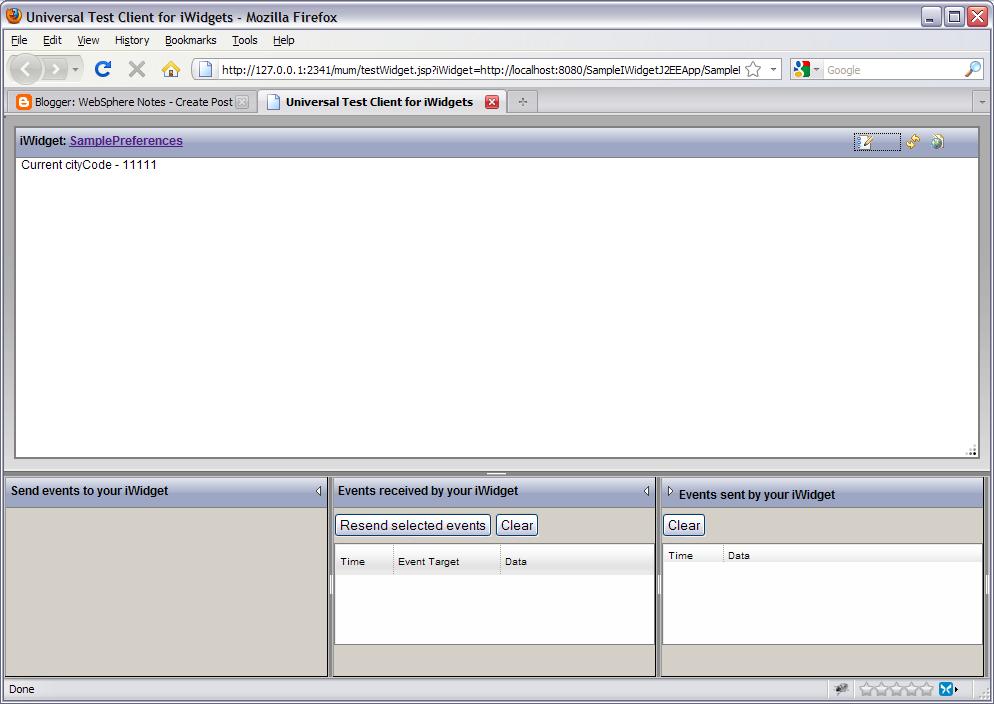
This is how the widget looks like in the VIEW mode

What is IWidget Wrapper portlet

The WebSphere Portal Server has a dedicated IWidget Wrapper portlet for easy integration with iWidgets. The portal unique name of this portlet is wp.p.IWidgetWrapper. Whenver you register a iWidget with portal it creates a portlet instance of the IWidget wrapper portlet.

When you register a new iWidget definition URI in your portal, the portal infrastructure loads the corresponding iWidget definition XML file and maps the information provided by the referenced iWidget definition into corresponding portlet meta data. This includes information about events and modes that the iWidget supports. The title and description of the created IWidget Wrapper clone are derived from the corresponding values of the iWidgets idescriptor item set.

I used the register-iwidget-definition task to register 3 widgets as portlets. THen i used the Manage Web Modules portlet to find the wp.resolver.iwidget.portlet.war file and inside that there were 4 instances of IWidgetWrapper portlet, one for default IWidgetWrapper portlet and 3 instances were created for three portlets that i registered.


I wanted to check what preferences get set for widget defined by following HelloWorldIWidget.xml


<?xml version="1.0" encoding="UTF-8" ?>
<iw:iwidget id="HelloWorldIWidget" xmlns:xsi="http://www.w3.org/2001/XMLSchema-instance"
xmlns:iw="http://www.ibm.com/xmlns/prod/iWidget"
supportedModes="view edit" mode="view" lang="en">
<iw:content mode="view">
<![CDATA[<div>Hello World - View Mode</div>]]>
</iw:content>
<iw:content mode="edit">
<![CDATA[<div>Hello World - Edit Mode</div>]]>
</iw:content>
</iw:iwidget>


When i checked the preferences for the portlet this is what i saw


As you can see the actual markup is stored in a preference

How to register a iWidget for use on Portal Mashup Page

YOu have two options to use iWidget in Portal 7.0, one either you can wrap a iWidget into portlet and then add the wrapped portlet on a portal page or you can use iWidget on the portal mash up page.

I wanted to add the widget on the Mashup Page inside the portal so these are the steps that i followed for that

  1. First install the J2EE application that contains the widgets as .war file using WAS Admin Console, while installing select WebSphere Portal as the server. Take a note of the context root of the web application

  2. Once the J2EE application is installed start the application

  3. After installing web application make sure that you can view the widget.xml files by going to the url


  4. Once the application is installed you should register it with the the portal by executing the following configuration task

    ConfigEngine.sh|bat register-mashup-module
    -DApplicationName='SampleIWidgetJ2EEApp_war'
    -DWasPassword=wasadmin
    -DPortalAdminPwd=wasadmin

    In my case the SampleIWidgetJ2EEApp_war is name of the application

  5. Next step is to change the catalog.xml file for for the toolbox to add name of the newly installed widget. To do that first you should copy the \WebSphere\PortalServer\base\wp.mmi.deploy\config\binaries\catalogs\catalog_default.xml file somewhere on your machine say c:/work.

  6. Then you should add one entry each for each of the widget like this

    <entry id="helloIWidget" unique-name="helloIWidget">
    <title>
    <!--@feedreader.title@-->
    <nls-string lang="en">Hello World iWidget</nls-string>
    </title>
    <description>
    <!--@feedreader.description@-->
    <nls-string lang="en">Displays content from a specified feed URL</nls-string>
    </description>
    <definition>/sampleiwidget/HelloWorldIWidget.xml</definition>
    <content>http://www.webspherenotes.com</content>
    <preview>http://www.webspherenotes.com</preview>
    <icon>/feedReader/feedreader.png</icon>
    <metadata name="com.ibm.lotus.widget.renderer">priority</metadata>
    </entry>

    Add the entry under the category where you want it to appear.

  7. Once the mycatalog.xml file is modified with your widget definition, you can register it with was by executing following configuration task

    ConfigEngine.bat import-config-fil
    e -DMMImportFile=c:\work\mycatalog.xml -DMMImportFilePropertyName="mashups.catal
    og_default.xml"


  8. Now restart the portal server and when you try to access the Mashup page you should be able to see the HelloWorldiWidget widget added to Demo category, you can drag and drop it on the mashup page


Security API Information

Portlet Login Service


  1. How to create custom login Portlet


Remember me Cookie + Step UP Authentication

  1. What is step up authentication

  2. How to enable remember me cookie functionality


  3. Sample Remember Me cookie portlet


Authentication Filters

  1. What is login FIlter

  2. Login Filter

  3. Logout Filter

  4. Session Timeout Filter

  5. Session Validation Filter


  6. Redirecting user on login


Impersonation

  1. What is impersonation


  2. What is impersonation

  3. Out of box impersonation portlet in WPS 7.0

  4. How to create custom impersonation portlet

  5. Creating impersonation url in theme


How to enable basic authentication in WPS 7.0

Ajax Test server in the RAD 8.0

The Rational Application Developer 8.0 has a Ajax Test Server, The AJAX test server is a lightweight Jetty-based server ideally suited for developing and testing AJAX applications. It quickly performs module publishing and server restart. It supports basic web artifacts such as servlets, JSP files, HTML, XML, JavaScript™ and CSS files.

You can use the AJAX test server when you want to compile, test and run resources quickly in an AJAX application, for example a Dojo-enabled web project or an iWidget project. You can test static or dynamic web projects on a AJAX test server.

In the Creating iWidget project using RAD 8 entry i mentioned the steps that you can follow to create a iWidget. Once your iWidget is ready you can test it by creating a Ajax Test Server definition and adding your iWidget application to it.


As you can see in my case i am adding SampleIWidgetJ2EEApp application to the Ajax Test Server, after adding the project you can test your application using Universal Test Client for iWidget by right clicking on the iWidget.xml and saying Run on the Server, in the server select Ajax Test Server.


The way it works is you pass the URL of your widget.xml file to the http://127.0.0.1:2341/mum/testWidget.jsp.

In my case the SampleIWidgetJ2EEApp has 3 widget definitions and they are available at http://localhost:8080/SampleIWidgetJ2EEApp/ directory so i can test each of them by passing the URL to the testWidget.jsp like this
http://127.0.0.1:2341/mum/testWidget.jsp?iWidget=http://localhost:8080/SampleIWidgetJ2EEApp/SampleEventSubscriber.xml&debug=false for testing SampleEventSubscriber.xml